Set your working hours
Tell ChatDeck when your team is around. If a visitor asks for a person at night or at the weekend, the bot queues the chat, shares your schedule and keeps helping in the meantime.
Working hours tell the AI assistant how to behave when your team isn't around. Without them, when the bot hands a chat over it tells the visitor "Connecting you with a support agent…" — even at 3 a.m. With working hours, it tells them honestly when you'll reply and doesn't leave them on their own.
Step 1. Open the Working hours tab
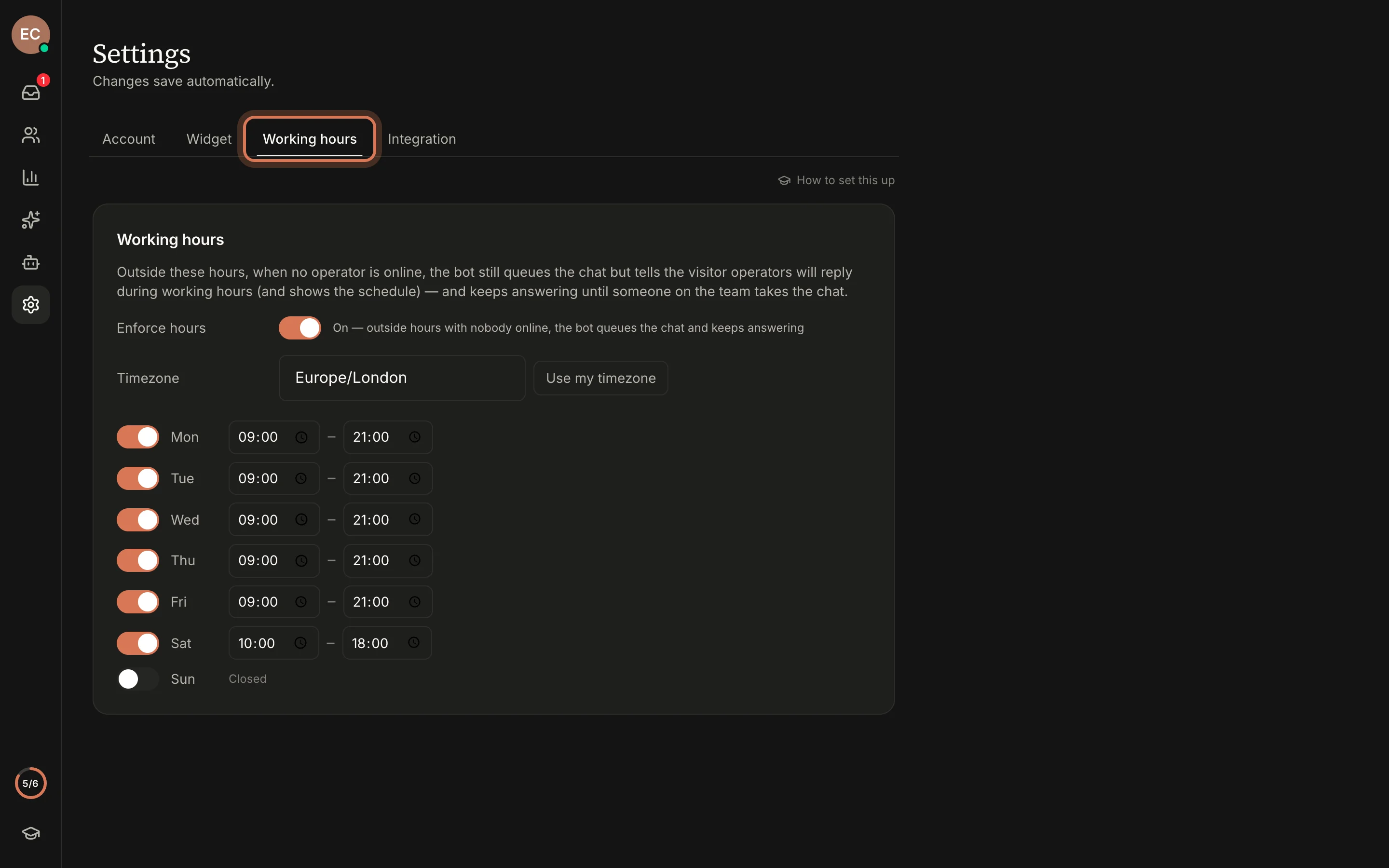
Go to Settings (the gear in the left rail) and open the Working hours tab. Changes save automatically.
Step 2. Turn on "Enforce hours"
Click the Enforce hours switch. The hint next to it reads "On — outside hours with nobody online, the bot queues the chat and keeps answering".
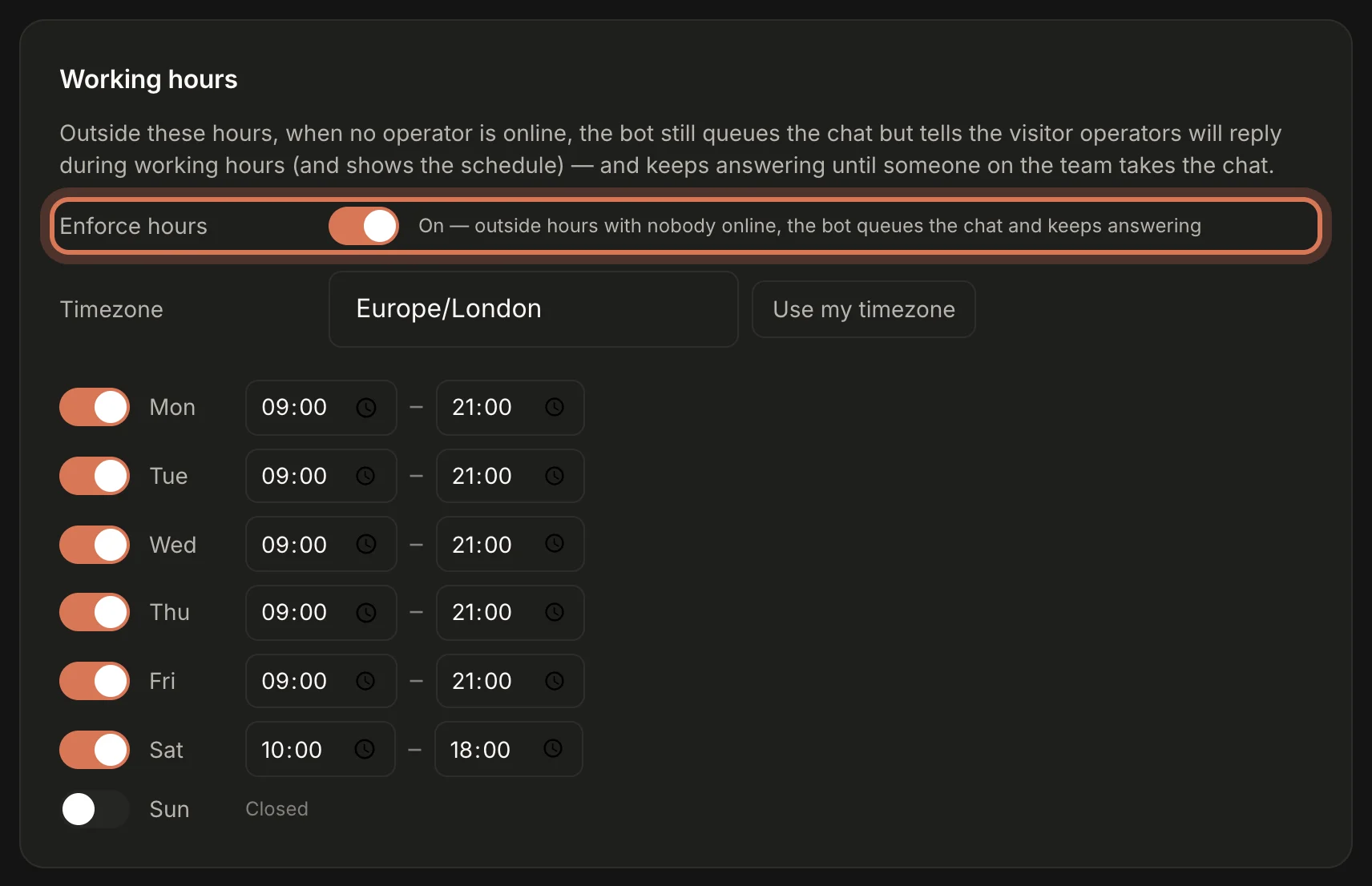
While the switch is off, the schedule does nothing: the bot always hands chats to your operators as usual.
Step 3. Set the timezone and days
- In Timezone, enter your team's timezone, for example
Europe/LondonorUTC+1. This matters when visitors or staff are in other places — hours are counted in this timezone, not the visitor's. - For each day of the week, turn on the switch on the left and set the start and end time (for example 09:00 – 21:00). Turn the switch off and the day shows as Closed.
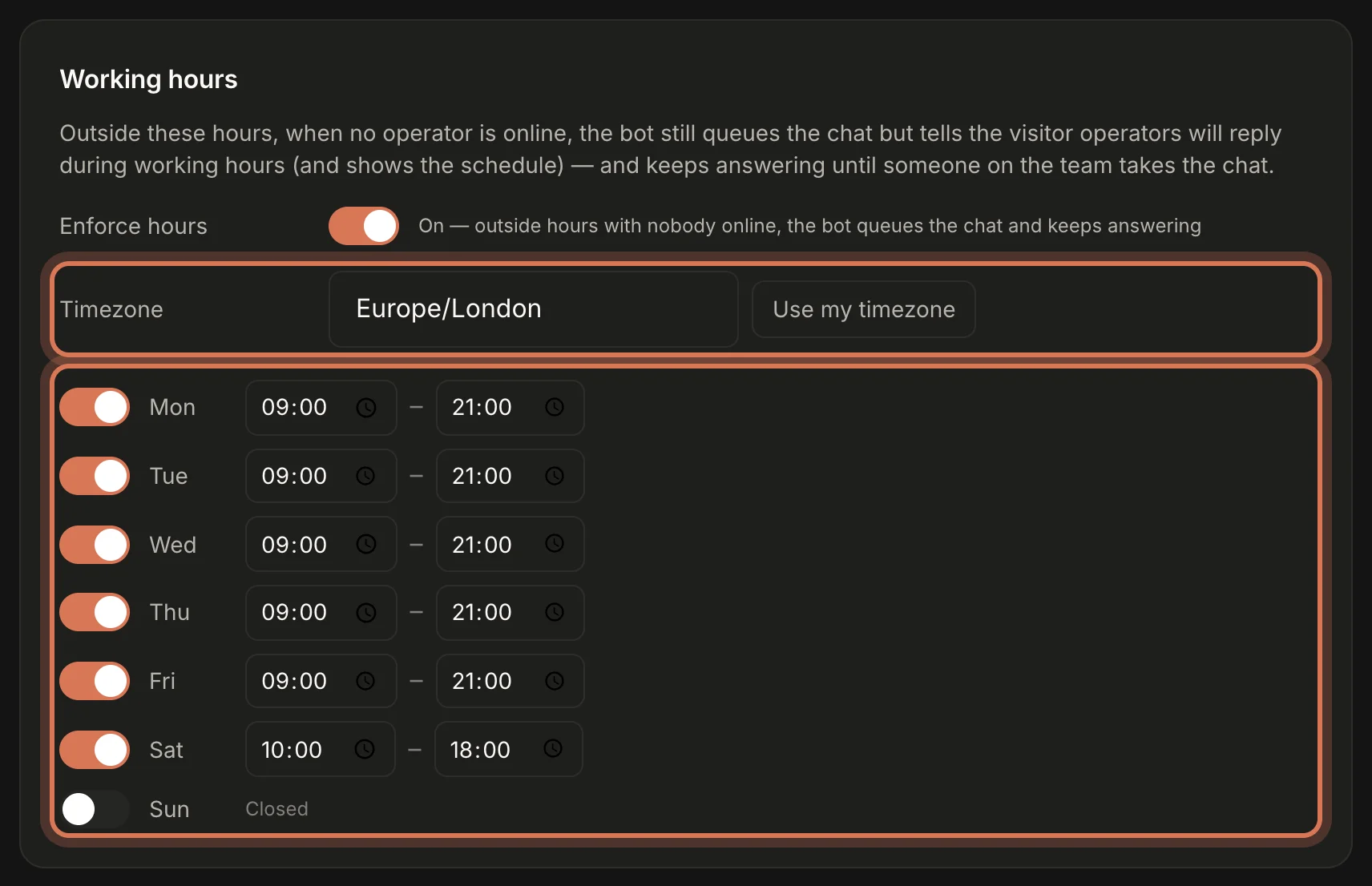
The default is Monday–Friday, 09:00–18:00. Remember to add Saturday if you work then too.
What happens outside working hours
The schedule only kicks in when both are true: it's outside your hours and nobody on the team is online (people set to "Away" don't count).
Then, when a visitor asks for a real person:
- The chat still goes into the queue on the Open tab of the Inbox, and the team gets a "Bot handed off" notification.
- The bot tells the visitor that operators are offline right now and will reply during working hours, and shows your schedule.
- The bot stays in the chat and keeps answering questions until someone on the team takes it over. It can't close that chat by itself.
If anyone on the team is online — even at night — everything works as usual: the bot hands the chat over and says "Connecting you with a support agent…".
Working hours only affect the AI assistant. With the assistant turned off, every message lands in the Inbox straight away, whatever the time.
Next: invite your team so you can answer chats together.
Still have questions? Write to support@gptunnel.ru — we’ll help you get set up.