Your profile and sign-in
The name and photo visitors see, your interface language, confirming your email, and signing in with Yandex ID or Apple instead of a password.
Your profile holds the settings that are about you personally: how visitors see you, which language ChatDeck uses for you, and how you sign in. Everyone on the team has their own profile — it's available to every role, agents included.
Step 1. Open your profile
Click your avatar at the very top of the left rail. The green dot on it is your "Online" status.
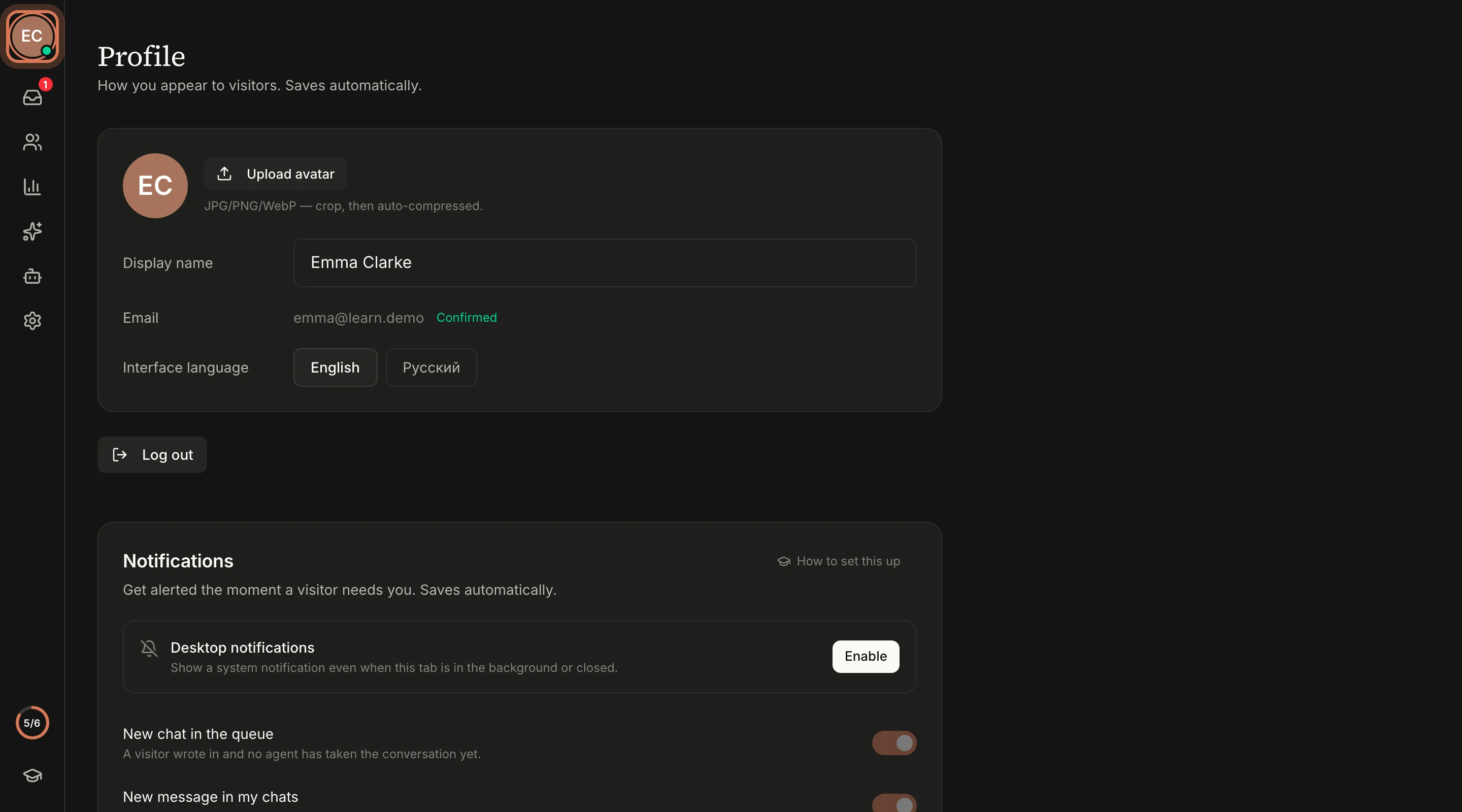
Profile changes save automatically — there's no Save button.
Step 2. Photo and name
- Click Upload avatar and pick a photo (JPG, PNG or WebP). A crop window opens — drag and zoom so your face sits in the circle, then confirm. The image is compressed automatically.
- In Display name, type how visitors should see you — for example "Emma" or "Emma, customer care".
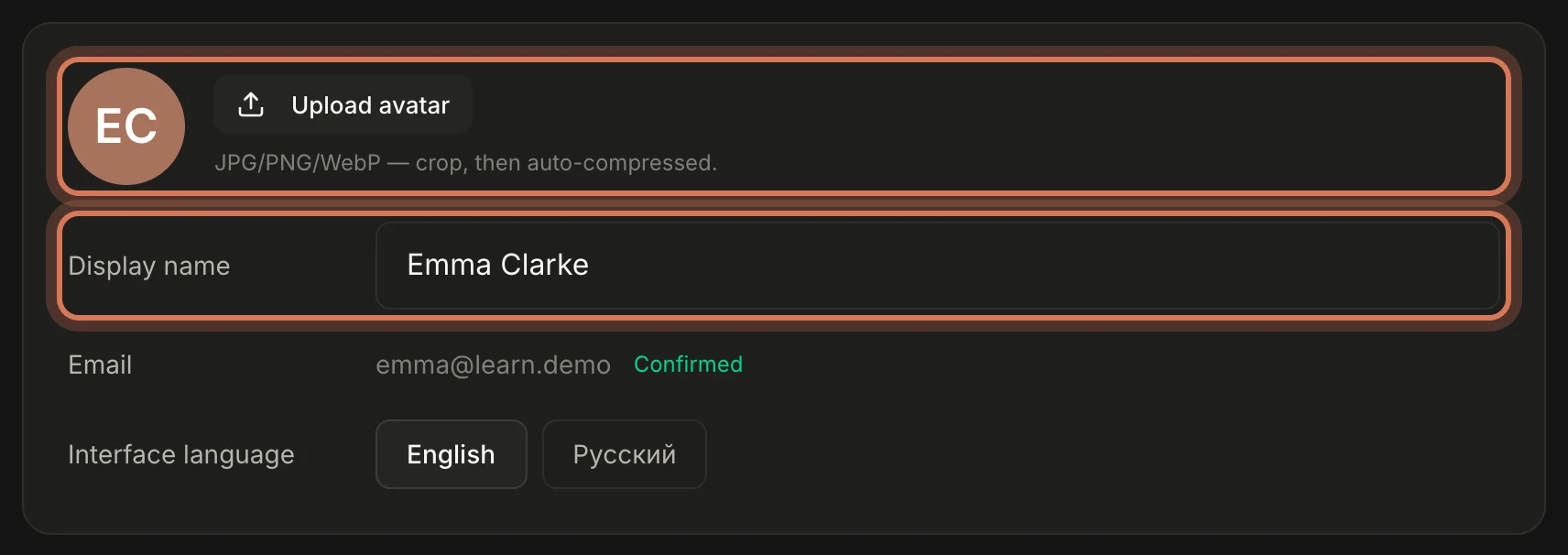
Visitors see your name in the chat header while you're handling their conversation. A real name and photo build more trust than "Operator".
Step 3. Email and interface language
- Next to Email you can see whether the address is confirmed. If it says "Not confirmed", click Send confirmation email and follow the link in the email (it's valid for 3 days). You can resend after a minute.
- Under Interface language, choose English or Русский — this switches all of ChatDeck for you. Colleagues and visitors aren't affected: everyone has their own language.
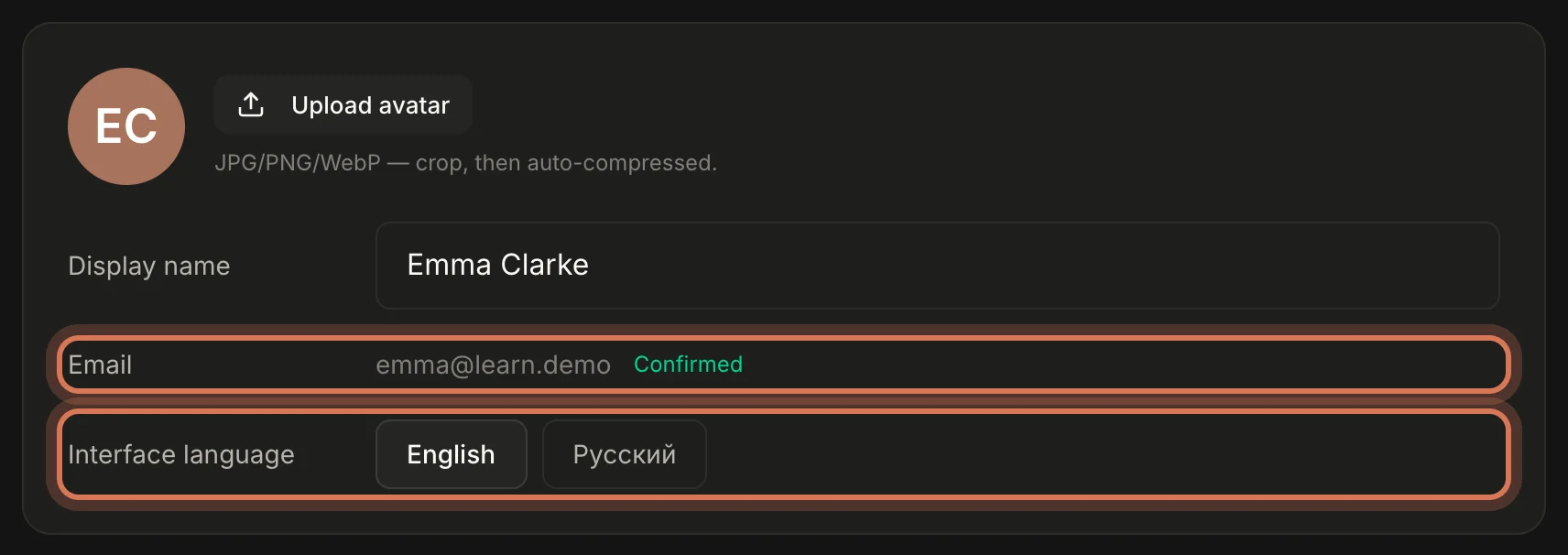
Confirming your email doesn't unlock anything — everything works without it, including password reset. It simply makes sure our emails reach you.
Step 4. Sign-in methods
Further down the profile page there's a Sign-in methods block. It shows how you can sign in to ChatDeck and lets you add more ways:
- Password — a tick means email-and-password sign-in already works. If you signed up with Yandex ID or Apple and have no password, click Set a password — we'll email you a link to create one.
- Yandex ID and Apple — click Link, sign in to your Yandex or Apple account and come back to ChatDeck. From then on you can just press Yandex ID or Apple on the sign-in page — one click, no password.
- Unlink removes a linked method. You can't unlink your last remaining method, so you never lock yourself out.
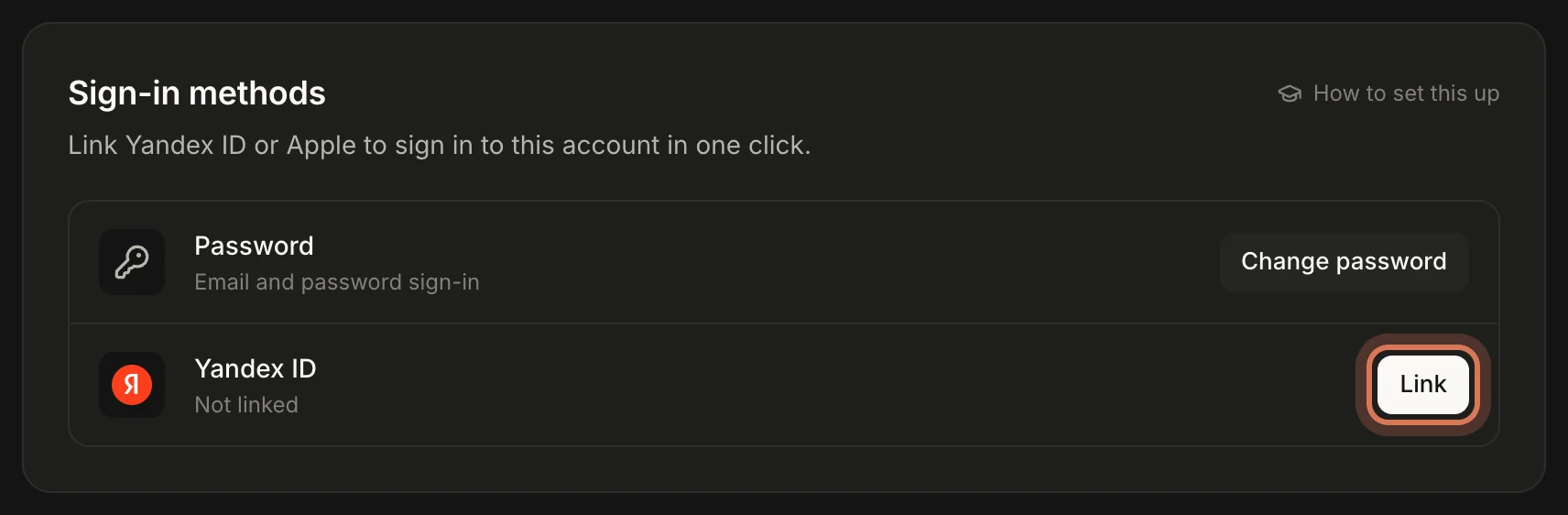
The Yandex or Apple account doesn't need the same email as your ChatDeck account. But one Yandex or Apple account can only be linked to one ChatDeck user.
Forgot your password?
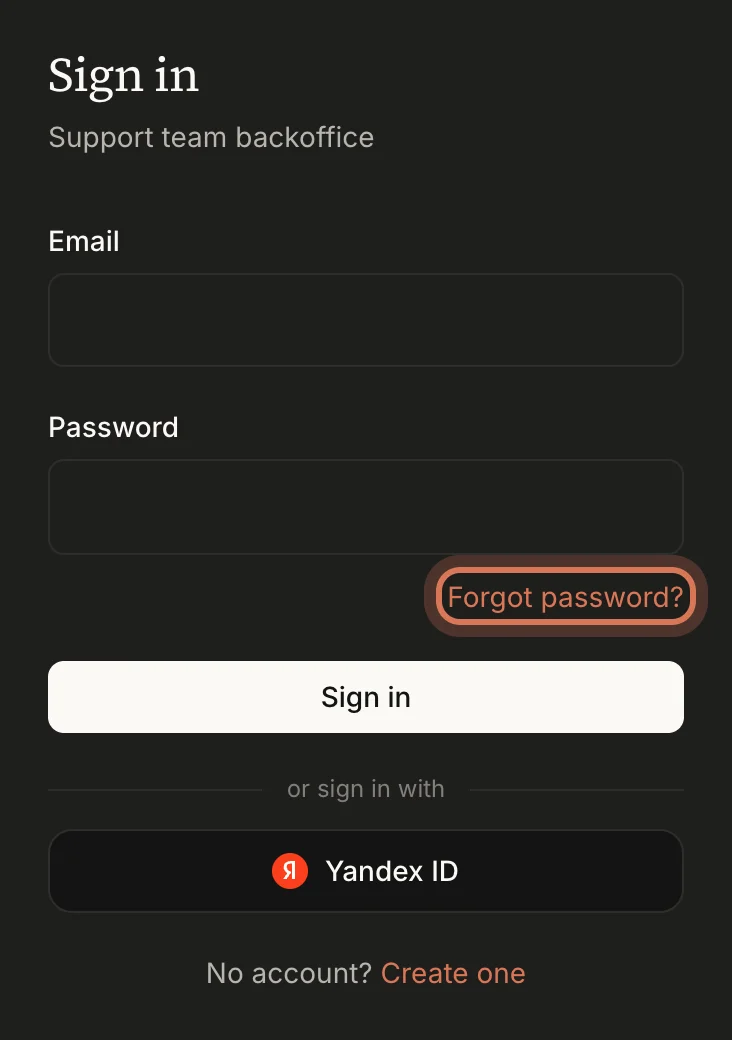
On the sign-in page click Forgot password?, enter your email and open the message we send. The link is valid for 1 hour and lets you set a new password.
Logging out
The Log out button is in your profile, just below the card with your details.
FAQ
Can I change my email?
Not from the profile. If you need a different address, an owner or admin can add you to the team with the new email on the Team page — see the team lesson.
Where do I delete my account?
At the very bottom of your profile, under "Delete account". Be careful if you're the owner: deleting your account deletes the whole workspace and its chat history. And if there are other people on the team, ChatDeck asks you to transfer ownership or remove the team first.
Next: connect ChatDeck to Claude or Cursor over MCP to ask AI about your chats.
Still have questions? Write to support@gptunnel.ru — we’ll help you get set up.