Insights: an AI report on your chats
A report that reads every chat for you: what visitors ask, where the bot fell short, what to add to the FAQ and where sales slip away. How to make one, re-run it with another model, and what it costs.
Nobody has time to read hundreds of chats — yet they hold the answers to your business's key questions. Insights reads every chat in the period you pick and, in a minute, writes a short report: what visitors ask, where the bot fell short, which answers to add and where you lose sales. Owners and admins can see and make reports.
Why it helps
An example from a flower shop over a month:
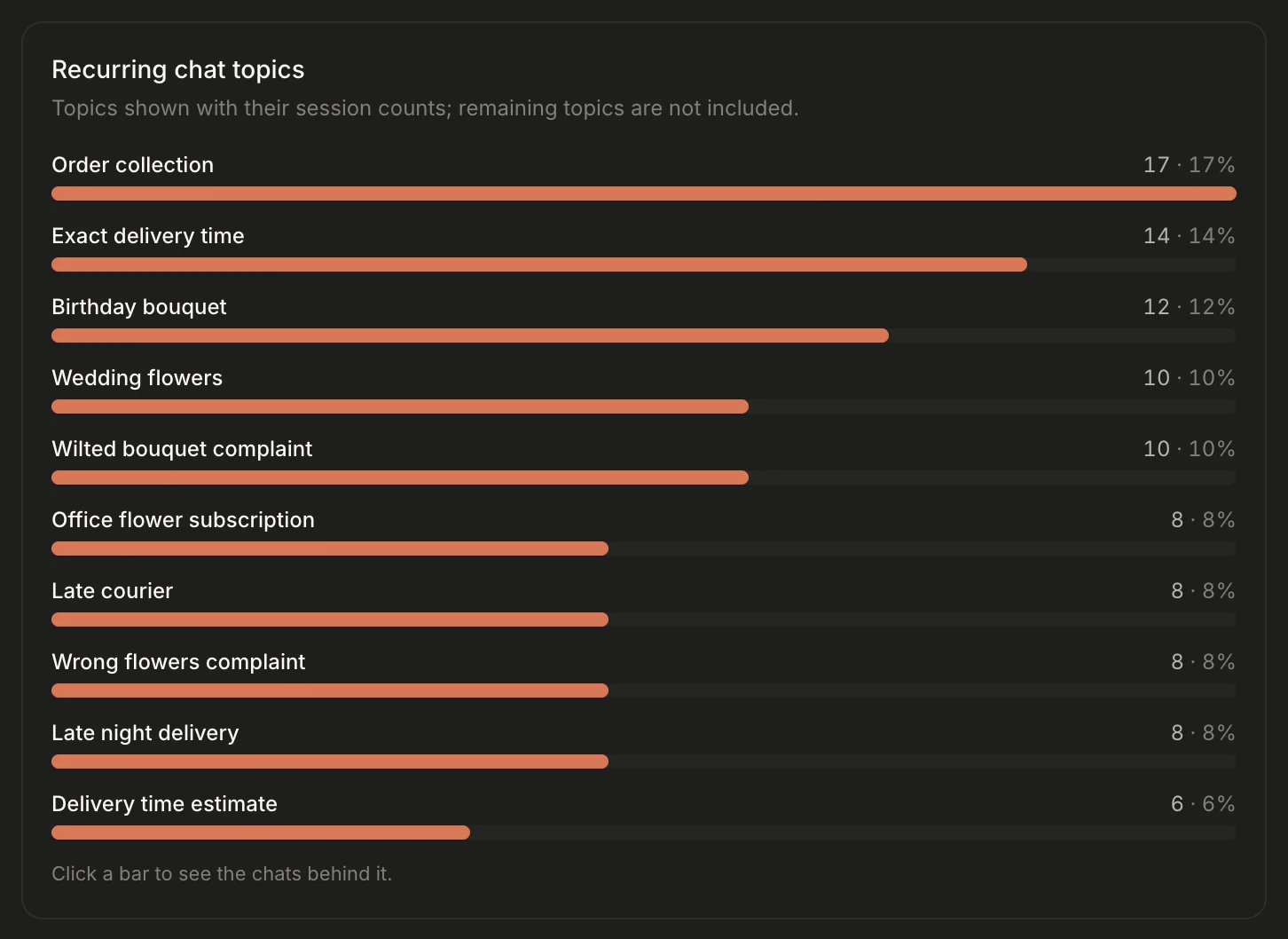
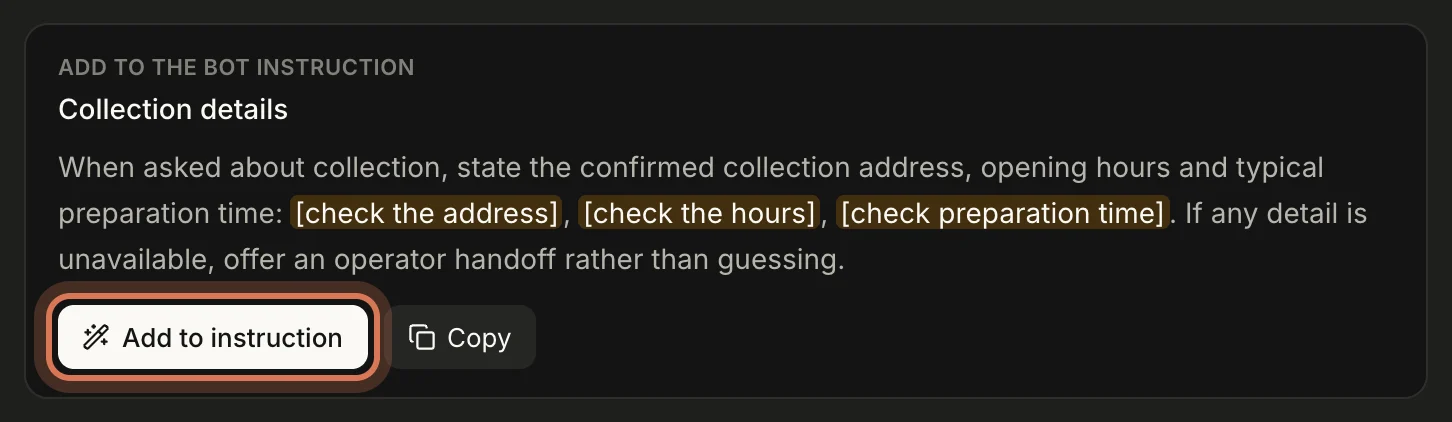
- The bot doesn't know about collection. Visitors ask "can I pick it up myself?", the bot hands over, the visitor waits. The report spots the gap and suggests ready-made text for the bot's instruction.
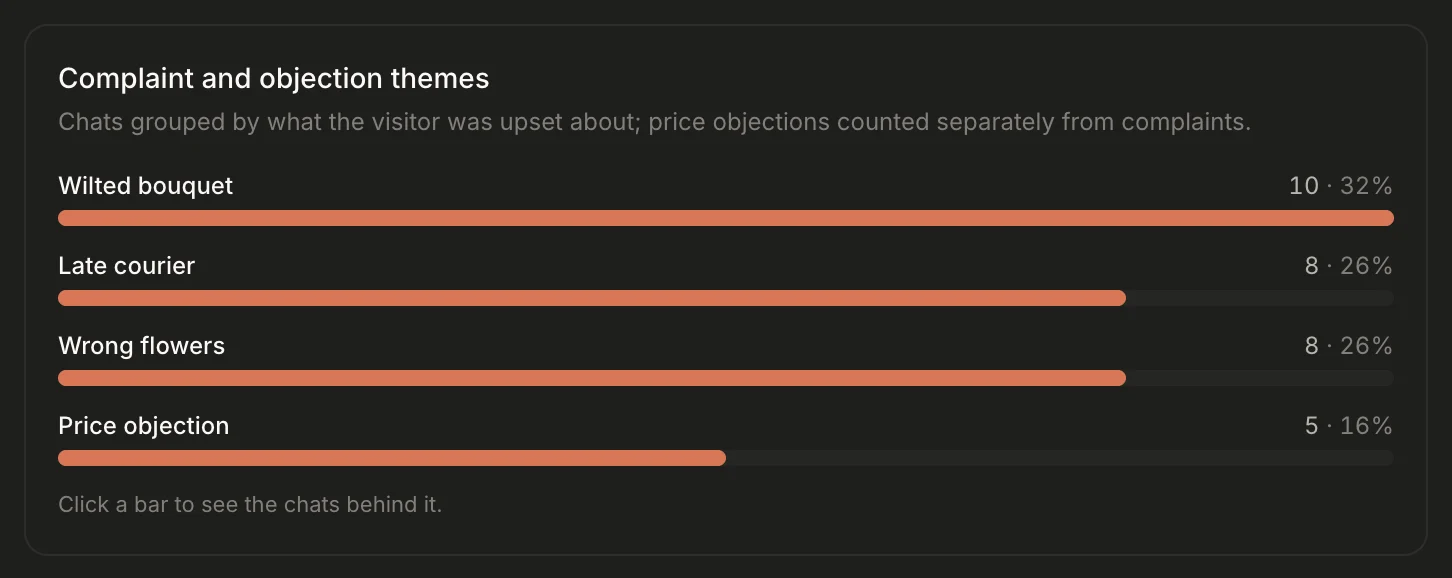
- Complaints pile up. "You delivered the wrong flowers" and "the bouquet wilted the next day" — one by one you'd miss them; in the report they're a chart row with examples.
- Leads slip away. A wedding for 60 guests, a weekly office subscription — the report surfaces these chats so no big order gets lost.
Every number in the report is counted by ChatDeck from your data, not by the AI: the model only sorts chats into groups and we count them. Quotes are visitors' real words (without emails or phone numbers) with a link to the chat.
Step 1. See what a report looks like
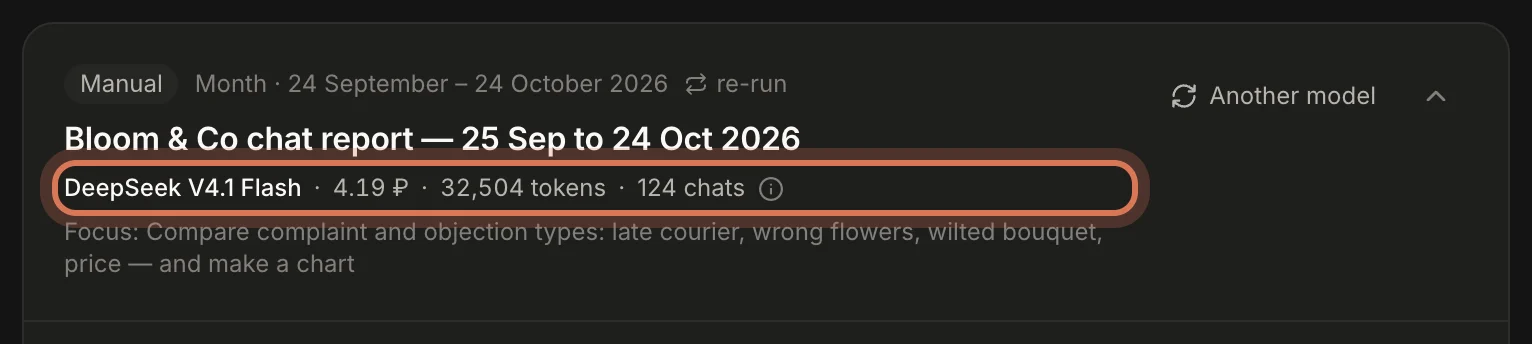
At the top: the period, the model, the actual cost and the tokens. Hover the ⓘ icon to see what reading the chats cost and what the final report cost.
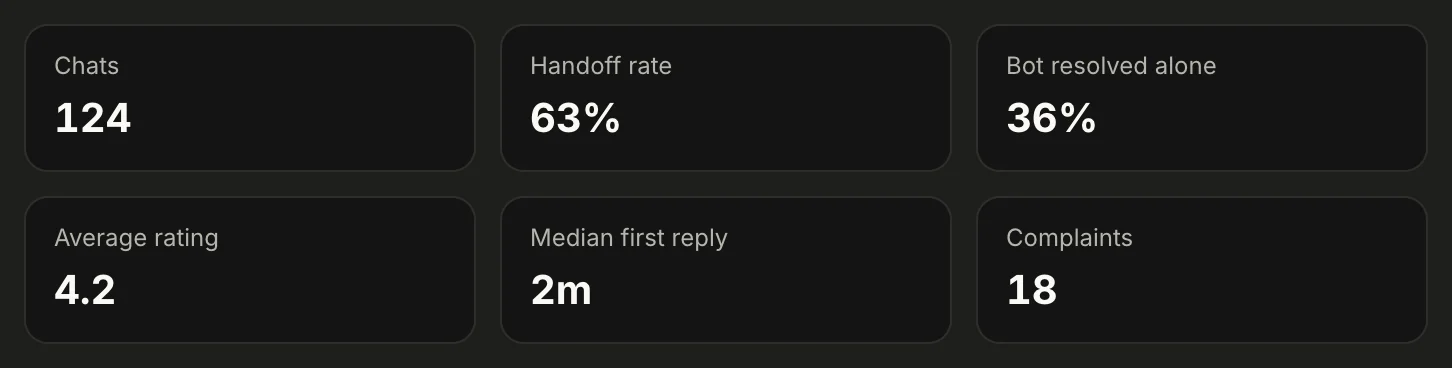
Then the key numbers of the period, with the change versus the previous period of the same length.
Topics — what people wrote about most. Click a row to see the chats behind it.
Next to it — visitor quotes. "Open chat" takes you straight to the conversation in the Inbox.

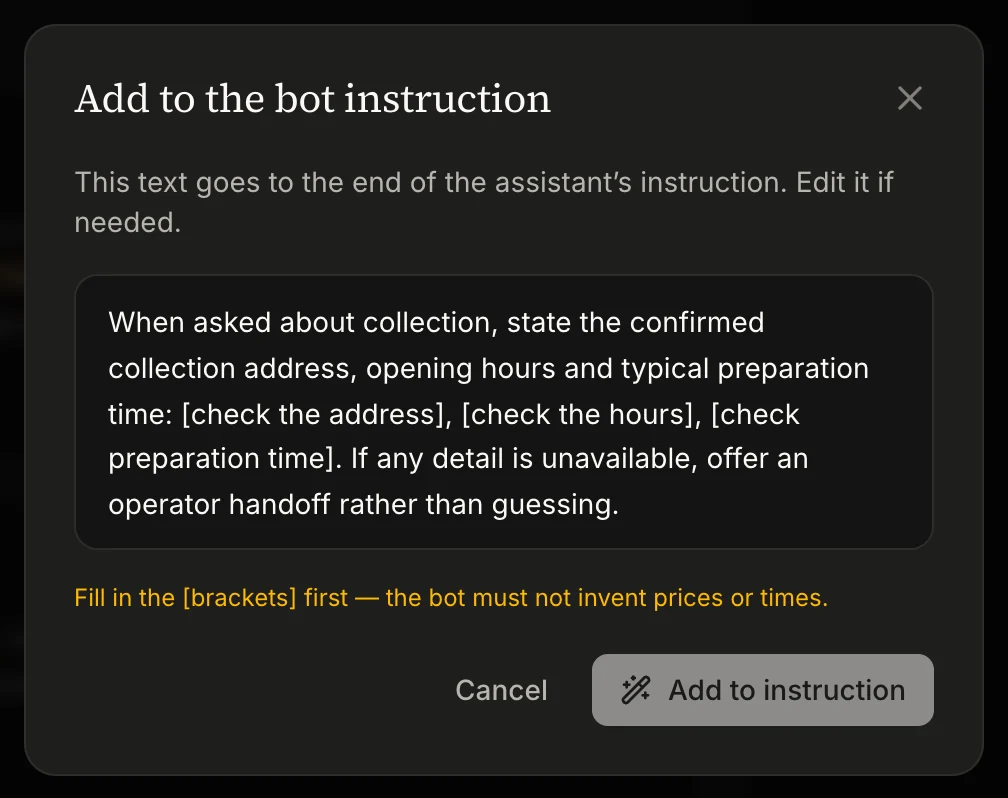
Where the bot failed — ready additions to the instruction. Click Add to instruction, edit the text and save. If it has [brackets] — like [check the price] — fill them in: the bot must not invent prices or times.
The report also has FAQ candidates, sales and leads, complaints and mood, how each operator did (by name), signals and what to do this week.
Step 2. Make a report
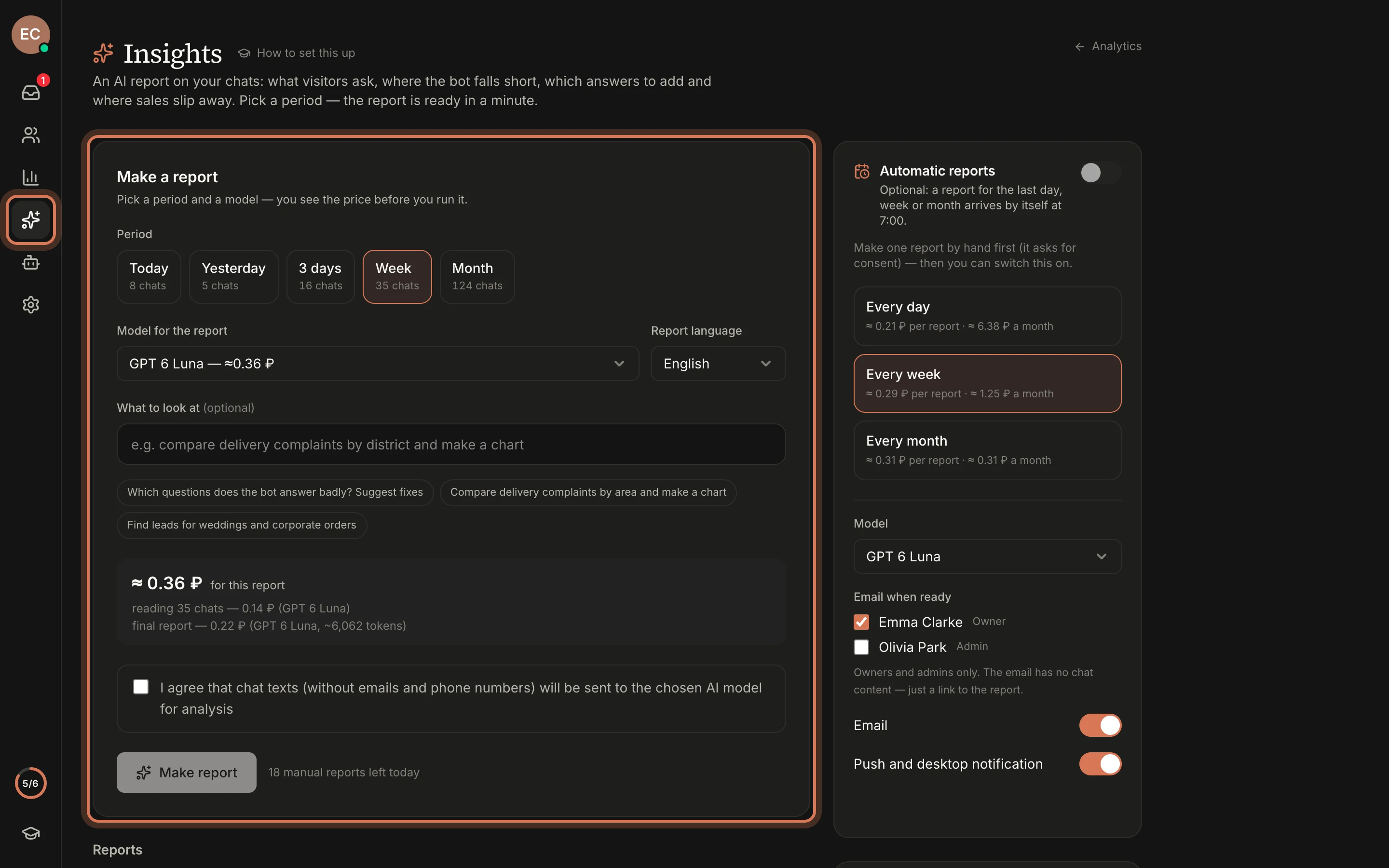
- In the left rail open Insights.
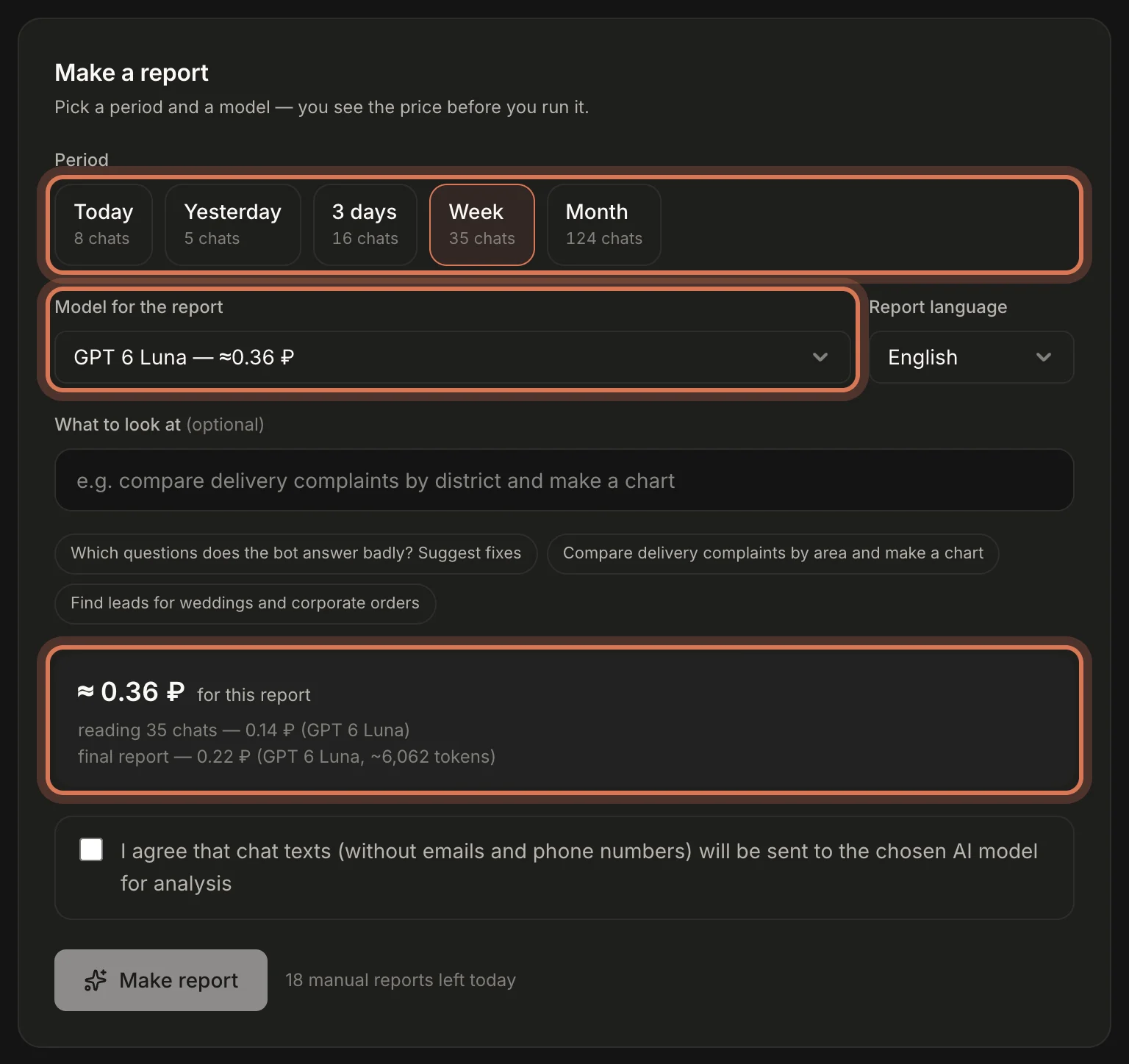
- Pick a period: Today, Yesterday, 3 days, Week or Month. Each shows how many chats it has.
- Pick a model. Each option shows the price of this report, with the breakdown below.
- Optionally write what to look at. For example:
- "Compare delivery complaints by area and make a chart"
- "Find leads for weddings and corporate orders"
- "Which questions does the bot answer badly? Suggest fixes"
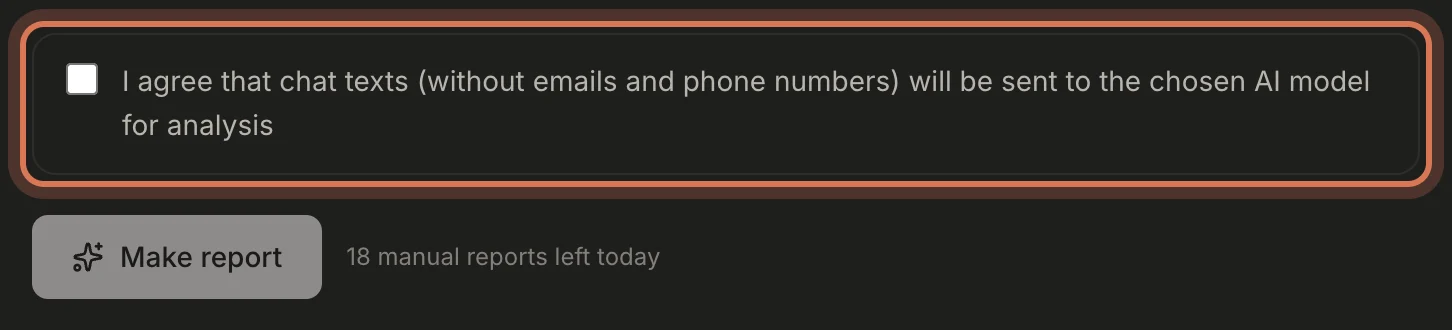
- Before the first report, tick the consent box: chat texts without emails and phone numbers go to the chosen model.
- Click Make report. It appears below in about a minute.
No AI key yet? Click Connect key — it's the same GPTunneL key as the assistant's, and it doesn't switch the bot on. More in Connect the AI assistant.
If you asked for a chart, the report has its own section for it — for example, complaints by type:
Step 3. Re-run with another model
Want to compare? Click Another model on a finished report and pick a model. The period stays the same, and chats already read aren't paid for again — only the final pass is. Both reports stay in the feed, each with its own model and cost.
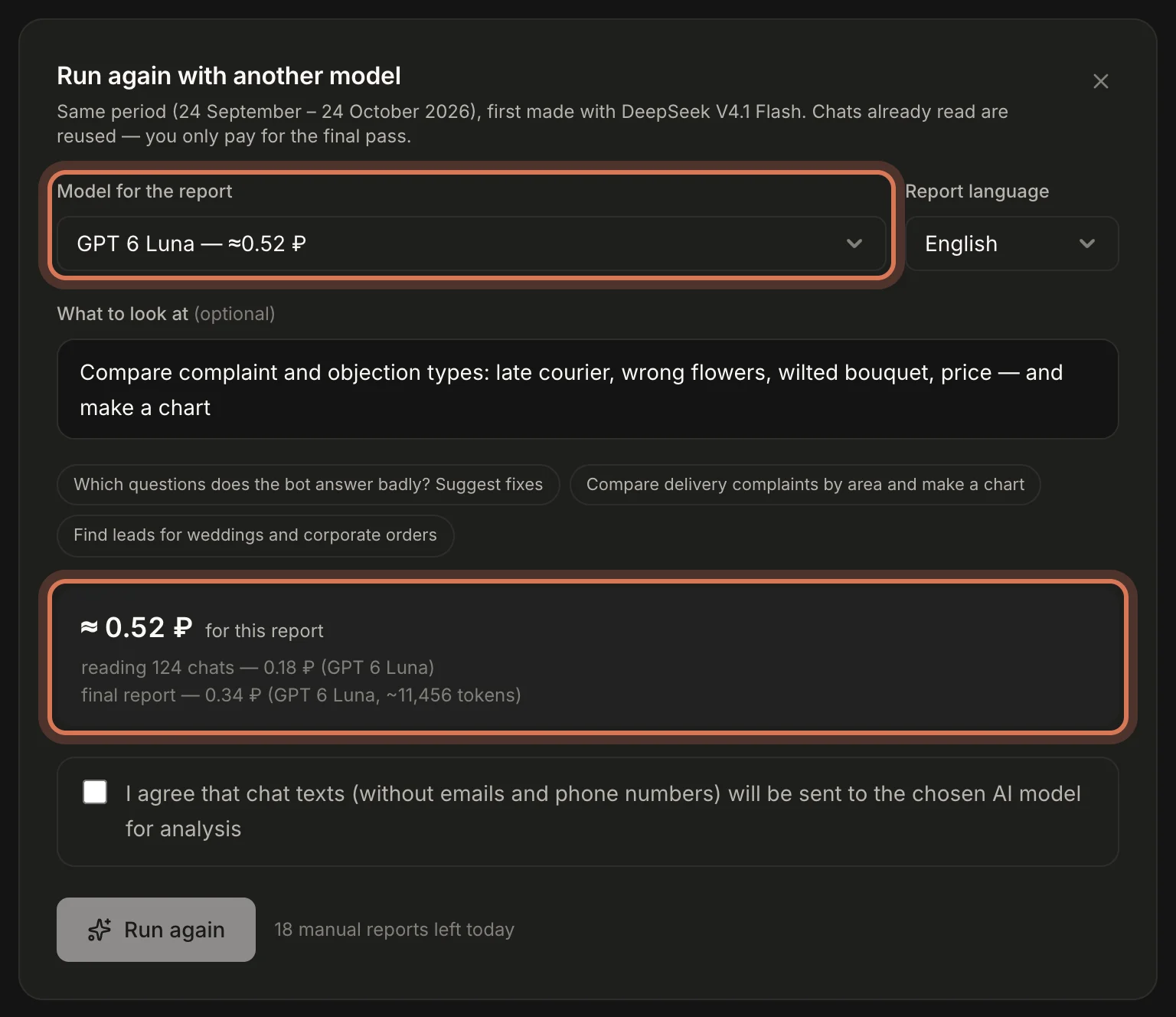
Cheap models (GPT Luna, Qwen Flash) write a good report for pennies. "Thinking" models write more but burn more tokens — check the price before you run.
Step 4. Turn on automatic reports (optional)
On the right — Automatic reports: every day, week or month, by 7:00 in your working-hours time zone. An option unlocks once you have chats for a whole period of that length: a weekly report needs a week of chats. Tick who gets the "report ready" email — owners and admins. The email has no chat text, just a link.
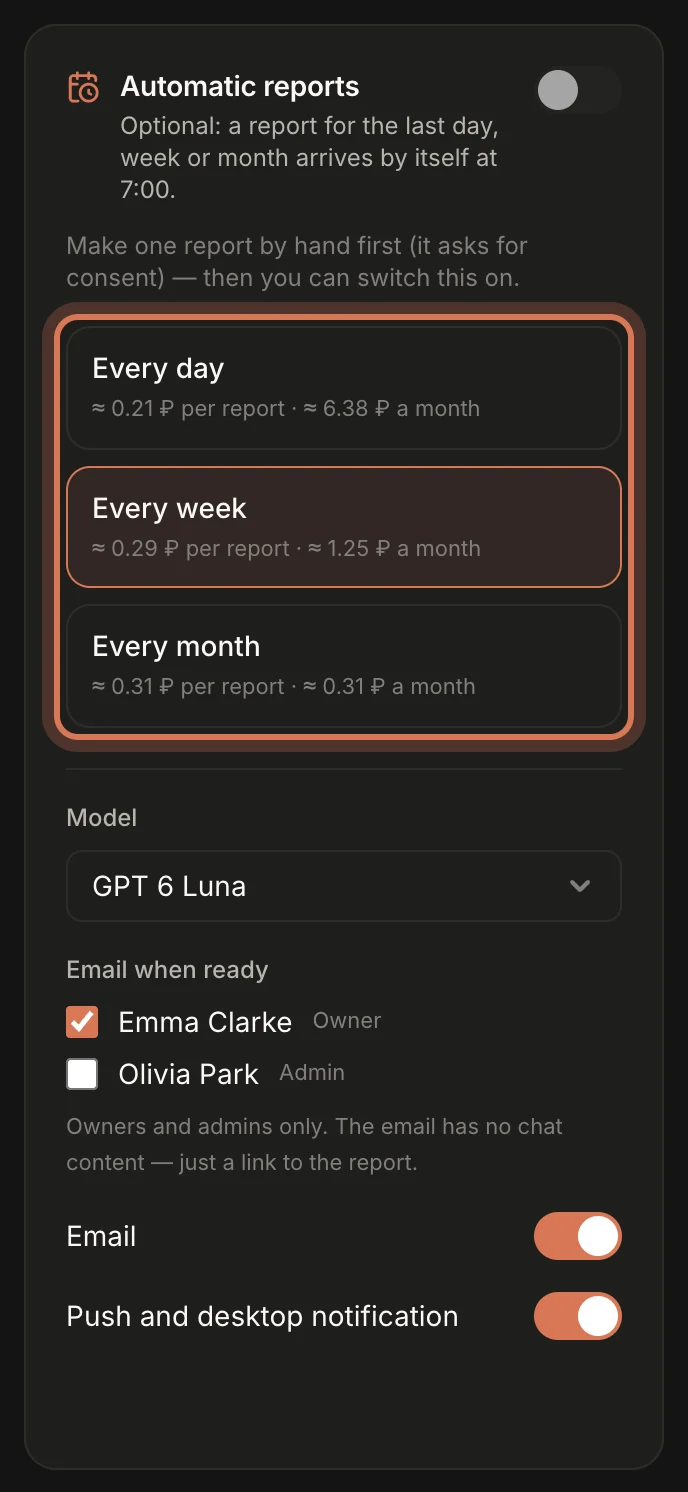
In Report settings you can set What to track — it goes into every report, manual and automatic.
What it costs and how to save
Reports are paid from your GPTunneL balance. We work in two steps: a cheap model first sums up each chat briefly, then the model you picked writes the report from those summaries only. That way a month of a small shop's chats costs under a rouble on GPT Luna and a few roubles on GPT Sol.
- Summaries are kept: a re-run, or a report for an overlapping period, pays only for the final pass.
- Use a cheaper model for daily reports and a stronger one for the monthly review.
- The limit per report in the settings stops an accidental big bill.
- The actual cost is always in the report header.
Next: read your analytics — numbers by day, response speed and ratings.
Still have questions? Write to support@gptunnel.ru — we’ll help you get set up.