What the assistant can do
Handing chats to operators, closing them with a rating and opening pages of your site: how to switch them on, how to word the instruction, and what happens automatically.
The assistant does more than reply with text. It can take three actions: hand the chat to an operator, close a solved chat and ask for a rating, and open a page of your site for the visitor. Each has its own switch, and the bot decides when to use them based on your instruction.
Step 1. Open "What the assistant can do"
On the Assistant page scroll down to the What the assistant can do card.
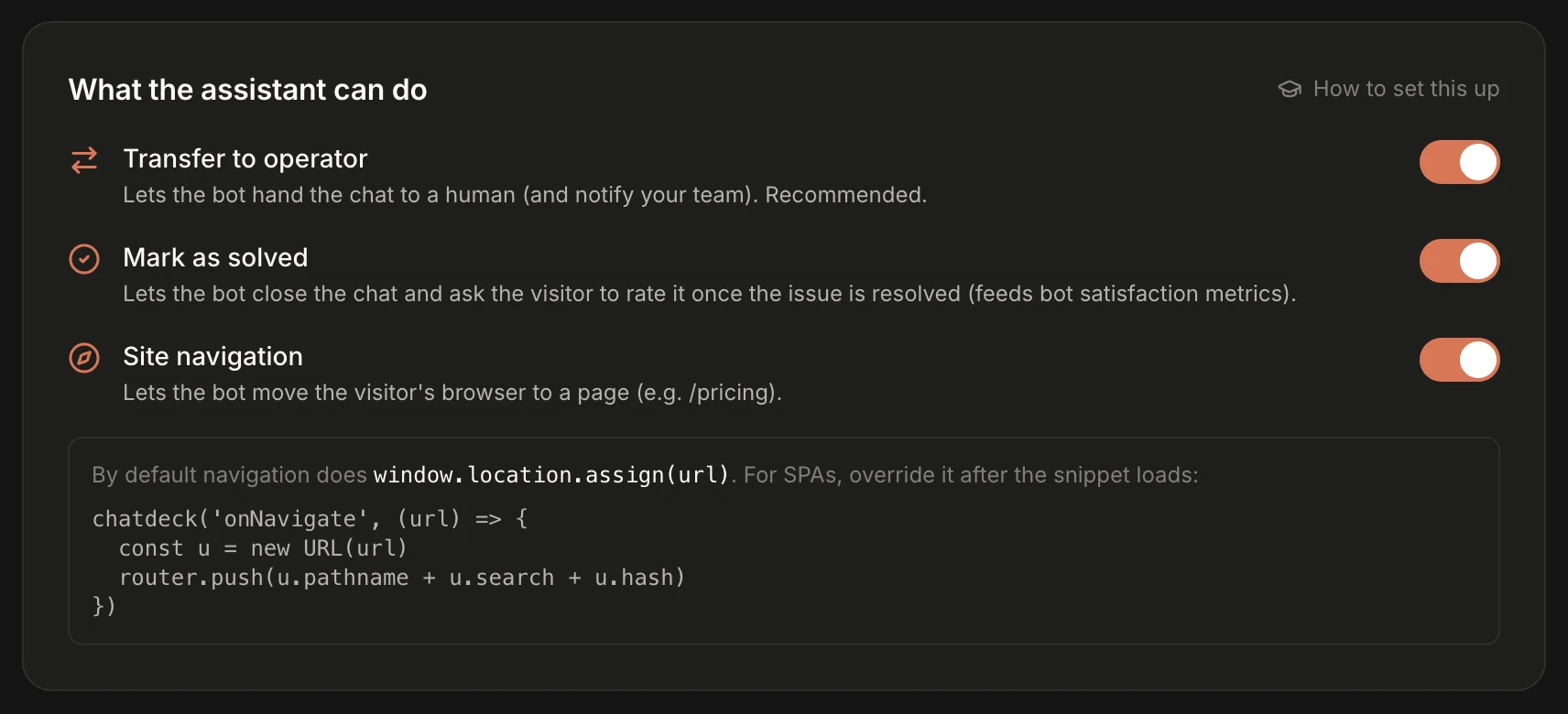
By default Transfer to operator and Mark as solved are on, and Site navigation is off.
Step 2. Transfer to operator
The most important one — keep it on. The bot passes the chat to people when it can't help, when the visitor is frustrated or asks for a human, and in every case you listed in the instruction.
What happens on a hand-off:
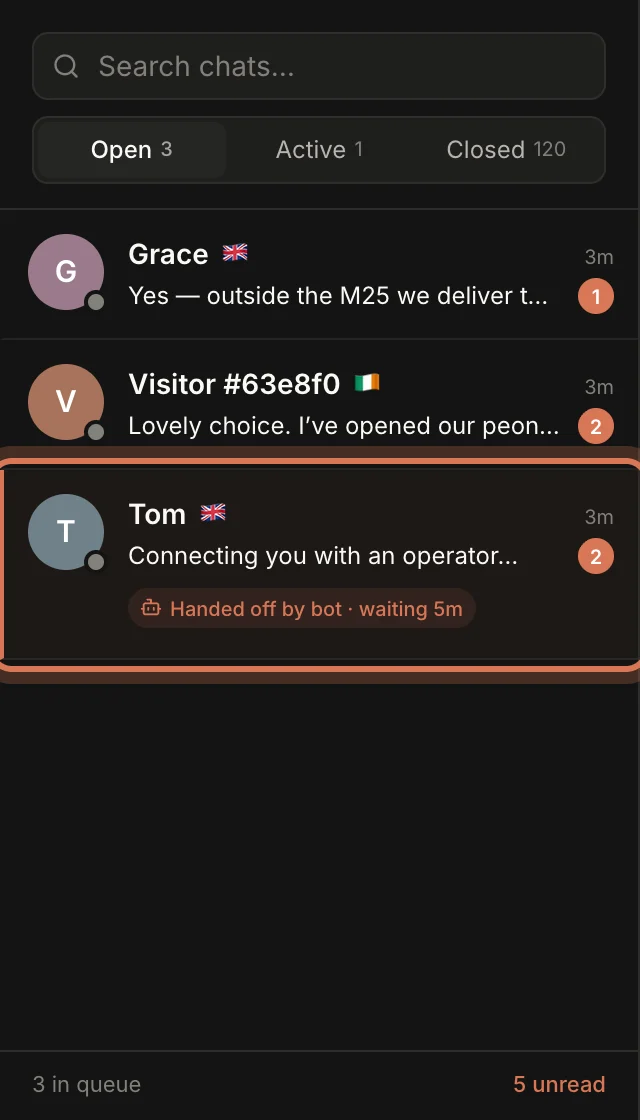
- The bot may write a short line, and the visitor sees "Connecting you with a support agent…".
- The chat lands in the Inbox under Open, with an orange stripe and a Handed off by bot · waiting Nm label — so you can see how long someone has been waiting.
- Everyone on the team gets a "bot handed off" notification — in the browser, the desktop app and on iPhone.
- The bot goes quiet in that chat. An operator clicks Assign to me or simply replies.
How to put it in the instruction — as a concrete list:
HAND OFF TO AN OPERATOR when
- someone asks about an order status, a refund or a damaged item;
- they want to pay by invoice or place a bulk order;
- the visitor asks for a person or is unhappy;
- you've failed to help twice.
Before handing off, say in one sentence that you're bringing in a colleague.
Before handing off, ask for their name and phone number if they haven't given them yet.
Outside working hours. If "Enforce hours" is on in working hours, it's currently closed and nobody on the team is online, the chat still joins the queue. But instead of promising "connecting you now", the bot tells the visitor when operators will reply (with your schedule) and keeps answering until someone takes the chat.
Switch it off and the bot can never hand off on its own. Only do that if nobody on your team answers chats at all.
Step 3. Mark as solved
When the question is answered and the visitor says thanks or goodbye, the bot closes the chat with a short sign-off. The visitor sees a "How did we do?" card with five stars, and the rating is credited to the bot — you'll find it in Analytics under Bot satisfaction and Resolved by bot.
If the visitor writes again, the chat reopens and the bot answers first again.
How to put it in the instruction:
WRAPPING UP
Mark the conversation as solved only when the visitor has their answer and thanks you or says goodbye.
Never close the conversation if their last message contains a question.
If the bot closes chats too early, add the second line above — it fixes the problem almost every time.
Step 4. Site navigation: the bot opens pages
With navigation the bot doesn't just say "have a look at the delivery page" — it takes the visitor there. That's a real boost for sales: "Here are bouquets that fit — I've opened them for you."
It takes two things.
1. Turn on "Site navigation". A hint for React, Vue and other single-page apps appears underneath (more on those below).
2. List the pages in the instruction. The bot doesn't crawl your site and doesn't know its addresses — it can only open what you tell it about. Write paths from the site root, starting with a slash:
PAGES
If the visitor wants to see a product, a section or the terms, open the right page and briefly say you've opened it.
- Roses: /shop/roses
- Bouquets under £60: /shop/under-60
- Delivery and returns: /delivery
- Corporate orders: /corporate
- Basket: /cart
Never open pages that aren't on this list.
Write/delivery, notdelivery: an address without the leading slash is taken relative to the current page, so from/shop/rosesthe bot would land on/shop/delivery.
What the visitor sees: the page changes in the same tab, and the chat shows a "Sent the visitor to …" line — your team sees it in the Inbox too.
Your site only. The bot can only open pages on the same domain as the chat, or a sibling subdomain (shop.example.com ↔ example.com). Anything else — marketplaces, social networks, messengers — is silently ignored. To send a visitor to another site, ask the bot to give a link instead: links in the chat open in a new tab.
Regular sites and SPAs
On a regular site (WordPress, Shopify, Wix and so on) navigating means loading a new page. The chat window reopens by itself on the new page with the same conversation, so the visitor carries on where they left off. Nothing to set up.
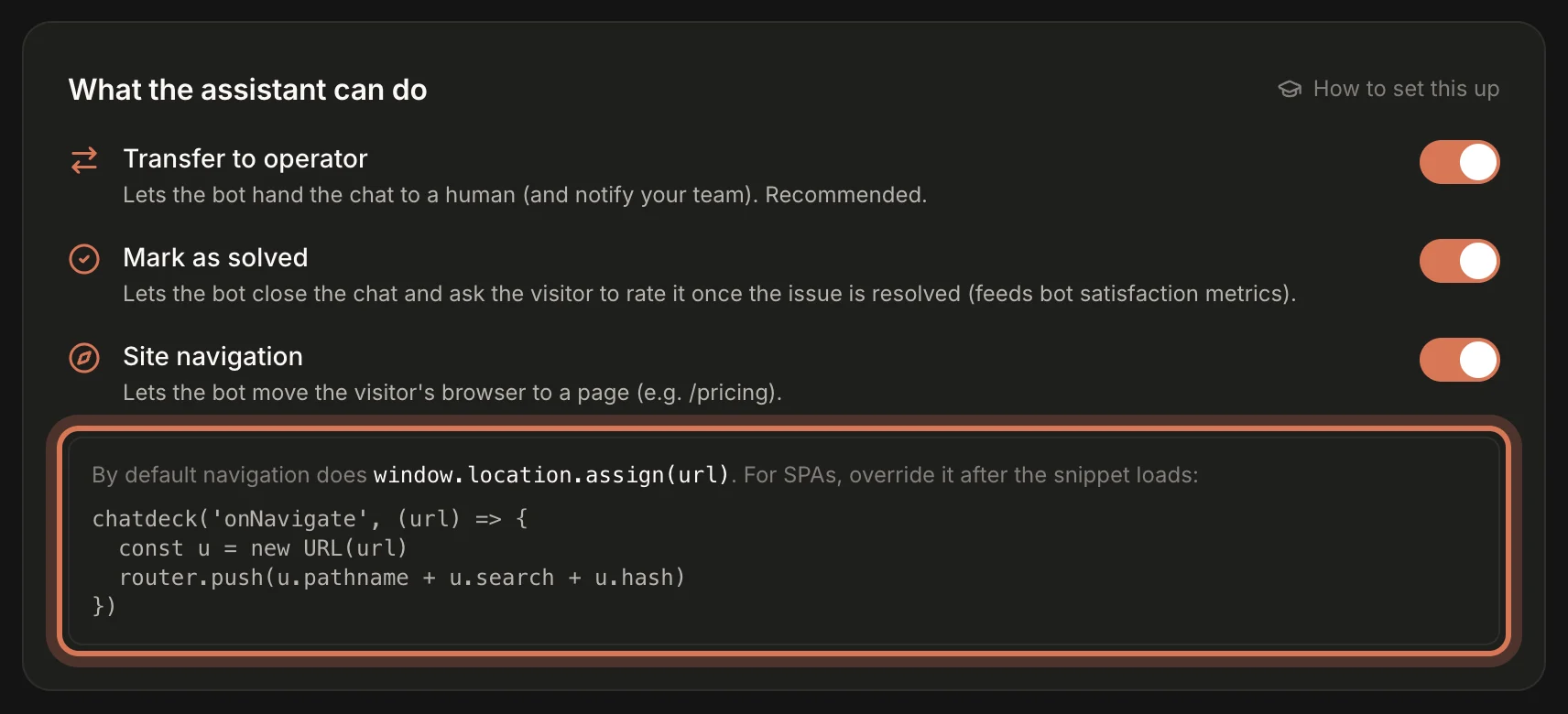
If your site is a single-page app (React, Next.js, Vue, Nuxt), a full reload is slow and resets the app's state. Hand the widget your router instead — the move is then instant, with no reload. Add this after the widget code:
<script>
  window.chatdeck = window.chatdeck || function () {
    (window.chatdeck.q = window.chatdeck.q || []).push(arguments)
  }
  chatdeck('onNavigate', (url) => {
    const u = new URL(url)
    router.push(u.pathname + u.search + u.hash)
  })
</script>
Replace router.push(…) (your app's router doing the move) with your framework's navigation: navigate(…) in React Router, router.push(…) in Next.js and Vue Router, navigateTo(…) in Nuxt. Usually you make this call inside the app, wherever the router is available (for example, in the root component). The first three lines are a stub: the call isn't lost even if the widget script hasn't loaded yet. More about chatdeck(…) calls in Settings → Integration → For developers — optional.
Step 5. What happens automatically
These work without any switch:
- The visitor goes quiet. If the visitor says nothing for about 2 minutes after the bot's reply, the bot asks once — in the visitor's language — whether there's anything else it can help with. After another ~2 minutes of silence the chat is closed ("The assistant closed this conversation after inactivity") and the visitor is asked for a rating. Any visitor message or operator action cancels the countdown. It never runs after a hand-off.
- The bot fails. If the model doesn't answer — your GPTunneL balance ran out, the model ID is wrong, the provider is down, or the reply takes over 30 seconds — the chat goes straight to your team, just like a normal hand-off. The visitor is never left hanging.
- An operator steps in. As soon as someone on the team replies or clicks Assign to me, the bot stops answering in that conversation.
FAQ
Can the bot hand a chat to a specific colleague? No — it goes to the shared queue, and any operator can take it.
Can the bot look up an order or add a client to our CRM? No. These three actions are all it can do. For anything that needs access to your systems, it collects the details and hands the chat to an operator.
Does the bot come back after an operator? Not in that conversation. Once the chat is closed and the visitor writes again, the bot answers first again.
Still have questions? Write to support@gptunnel.ru — we’ll help you get set up.