Read your analytics
What every number on the Analytics page means: conversations, response speed, ratings, how the bot is doing and who on the team was around. Plus what to check once a week.
The Analytics page shows how many people wrote to you, how fast they got an answer and whether they were happy. Owners and admins can see it. There's nothing to set up — the numbers are worked out from all your conversations automatically.
Step 1. Open Analytics and pick a period
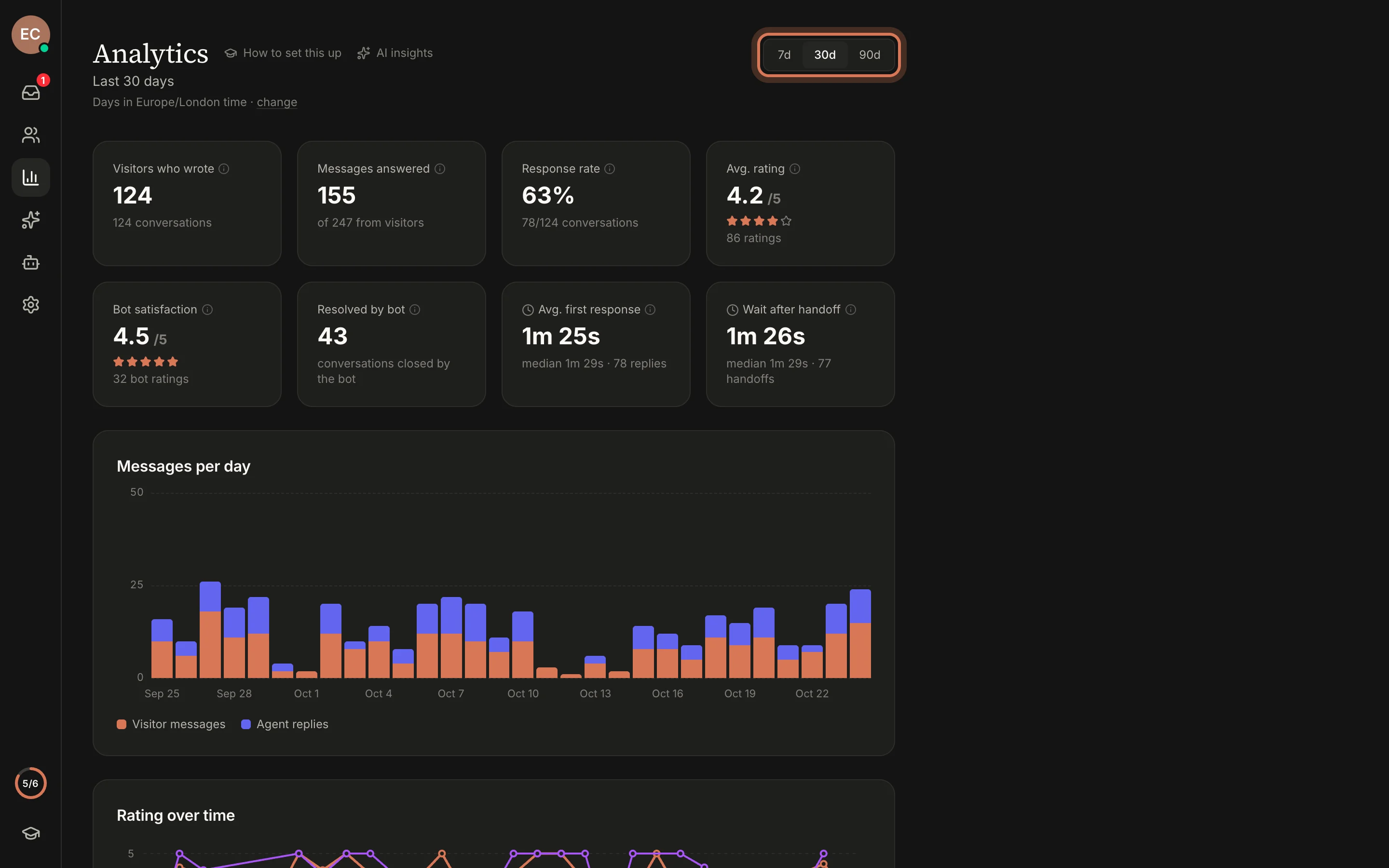
- In the left rail click the Analytics icon.
- In the top-right corner pick a period: 7d, 30d or 90d. The default is 30 days.
Every card on the page updates for the period you pick.
Step 2. Understand the headline numbers
There are eight tiles at the top. Hover over a tile to see how its number is calculated. Next to each number is the change versus the previous period of the same length: green means better, red means worse.
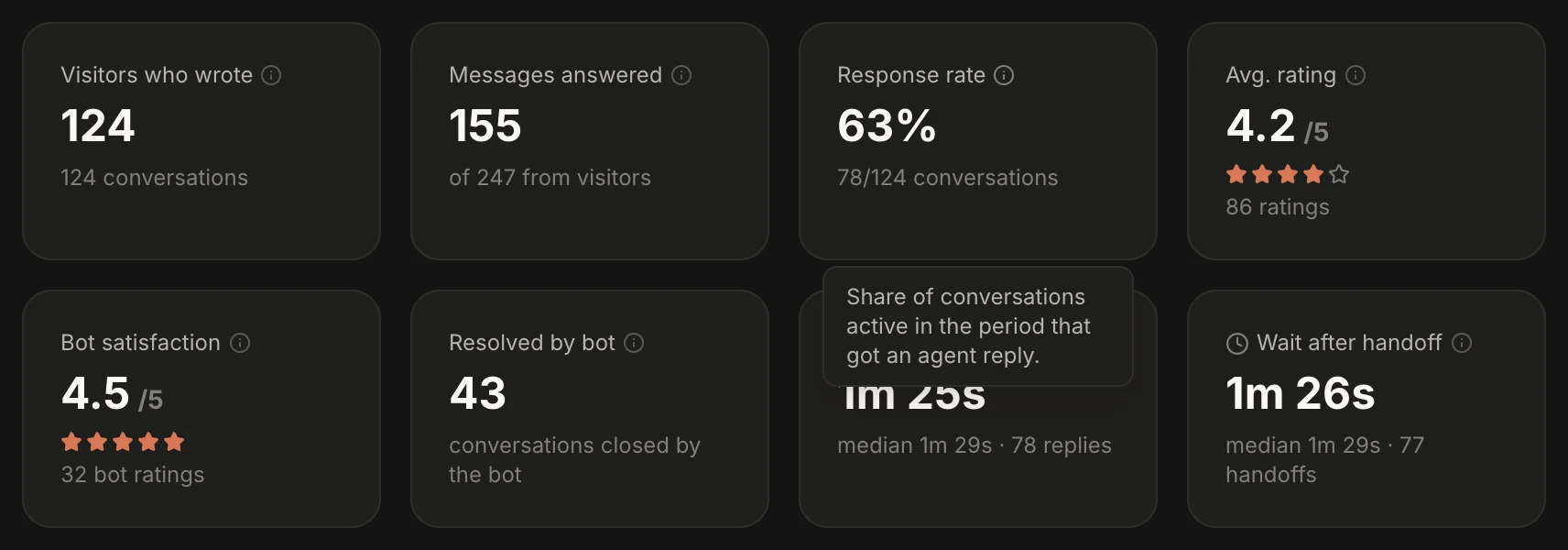
- Visitors who wrote — how many different people sent at least one message. Below it: how many conversations there were.
- Messages answered — messages sent by agents (not the bot), next to how many visitors wrote.
- Response rate — the share of conversations in the period that got a reply from a human agent. If the bot handles most chats, this will be low — and that's fine.
- Avg. rating — the average visitor rating from 1 to 5 across closed conversations, for agents and the bot together.
- Bot satisfaction — the average rating of conversations the bot closed on its own.
- Resolved by bot — conversations the bot finished without handing them to a person.
- Avg. first response — how long a visitor waits, on average, for an agent to reply to their message.
- Wait after handoff — how long a visitor waits for a person after the bot hands the chat over.
For response time and wait time, green means people waited less.
Step 3. See your busiest days
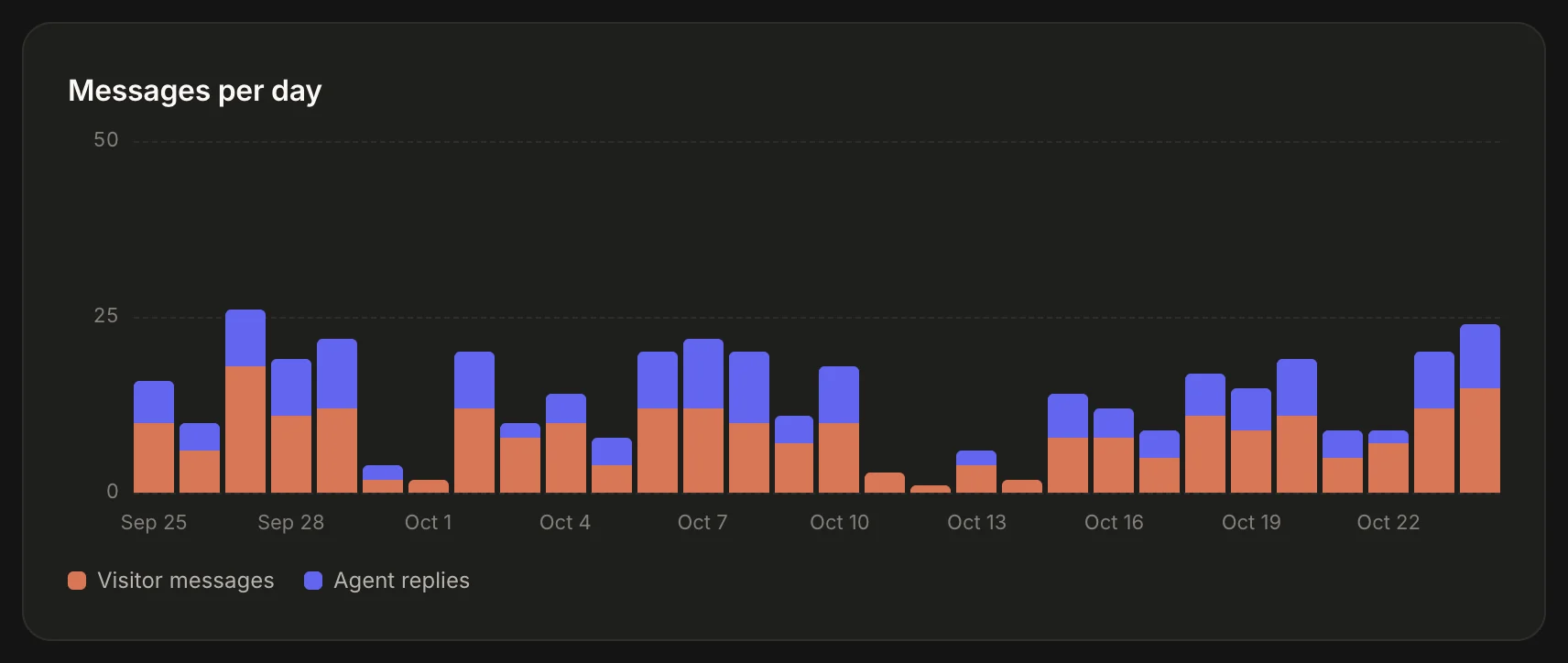
The Messages per day card shows a bar per day: visitor messages and agent replies. Hover over a bar for that day's exact numbers. It shows which days are busiest and when you need more people on shift.
Step 4. Keep an eye on ratings
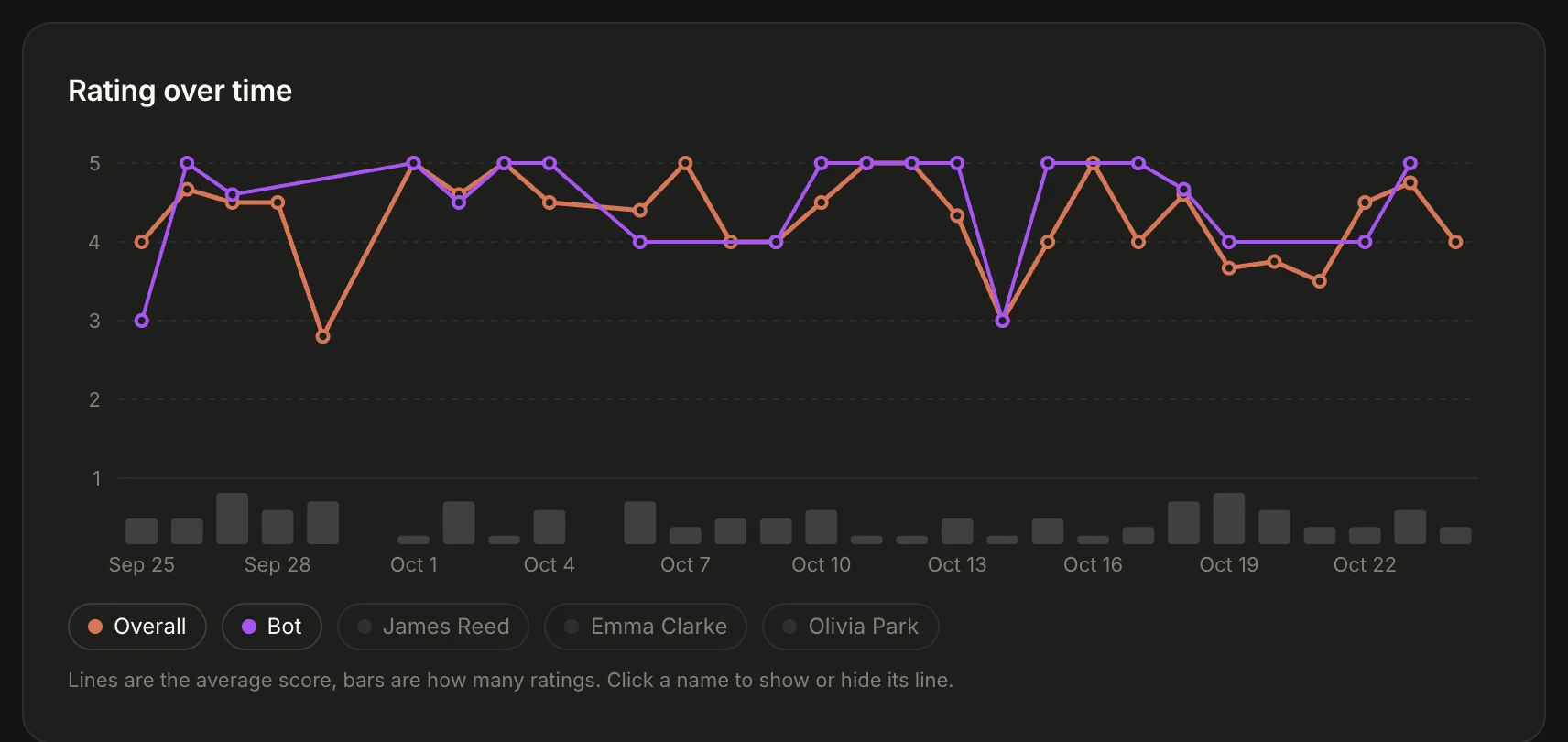
Rating over time: the lines are the average score per day, the bars are how many ratings came in. The Overall and Bot lines are on by default. Click a name in the legend to show or hide its line — for example, to add a particular agent.
Further down, Customer satisfaction shows how many ratings of each level you got, from one to five stars, with percentages.
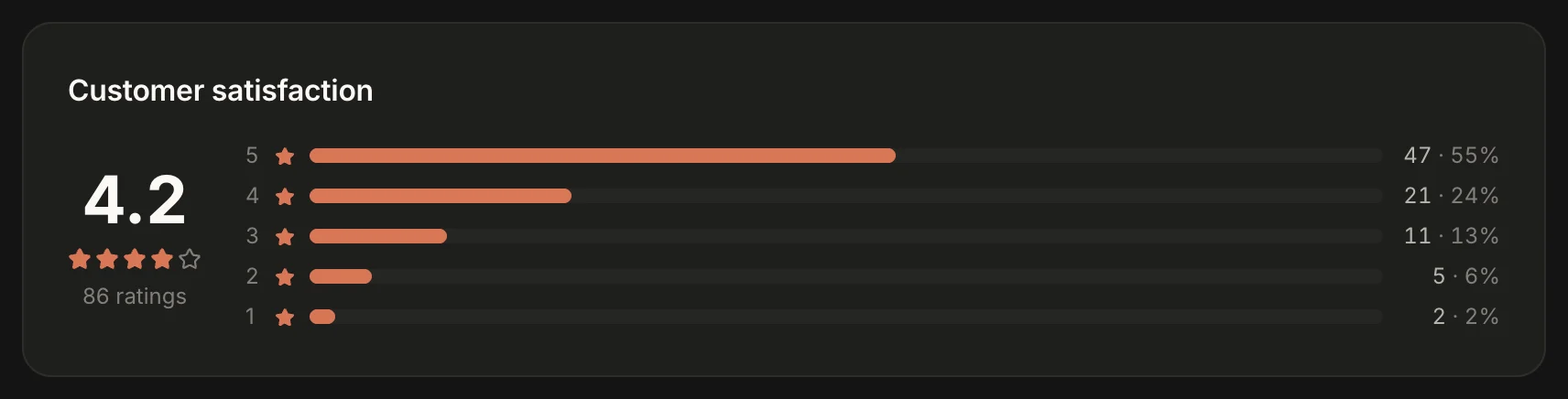
Visitors rate a chat after it's closed — by an agent, by the bot, or automatically after a period of silence. If you get few ratings, click Resolve more often once a question is sorted.
Step 5. Compare agents and the bot
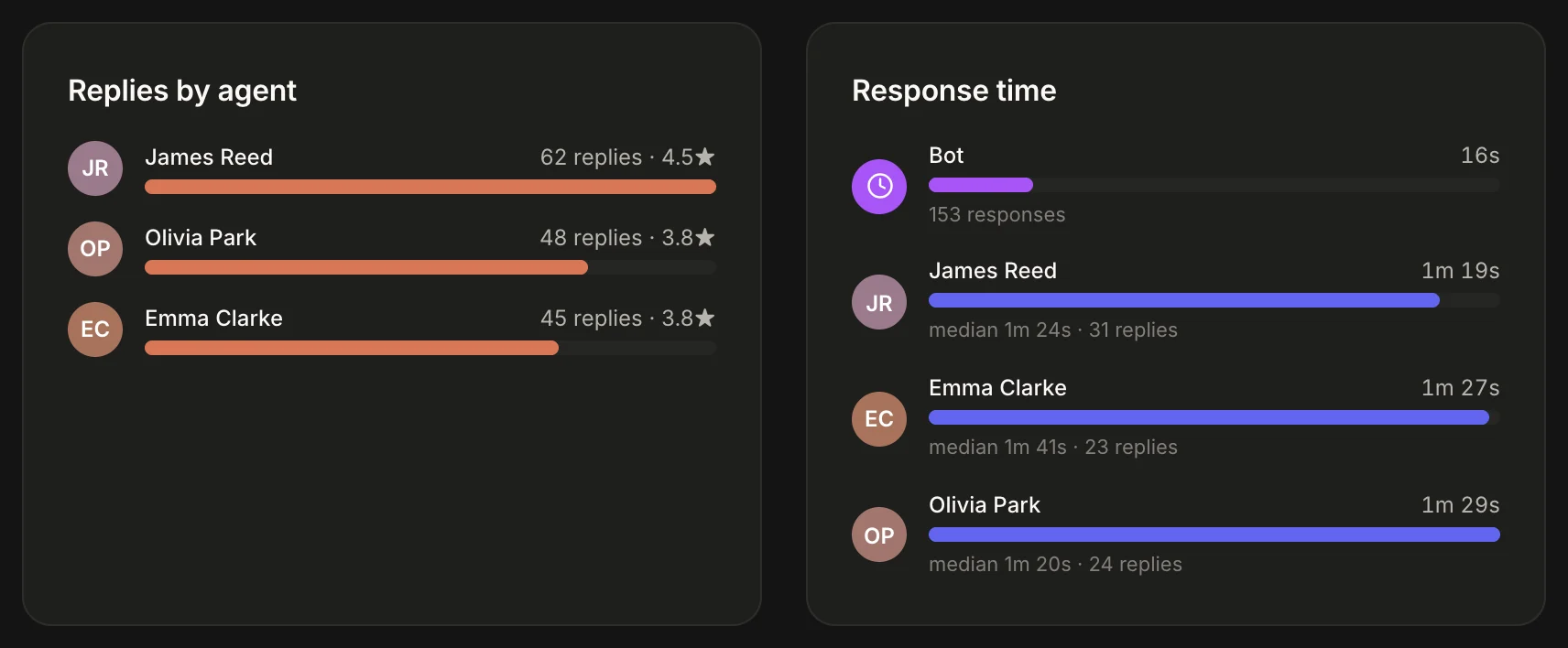
- Replies by agent — how many messages each person sent, with their average rating (★).
- Response time — each person's average response time, fastest first. The bot is on the list too.
Step 6. Check who was around
At the bottom, Team presence shows for each person when they were Online and when they were Away. Gaps mean they were offline. On the right: their total hours online and away for the period. The Coverage strip on top shows when at least someone was available; the taller the bar, the more people were online.
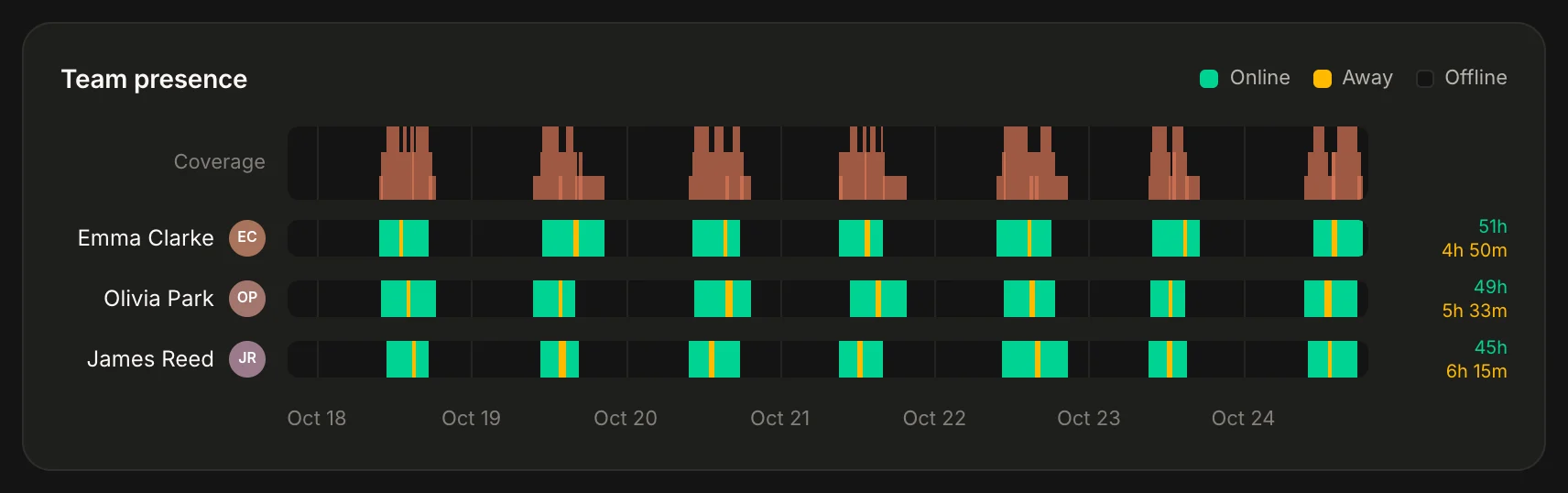
If Coverage has gaps during working hours, only the bot was answering then, and chats it handed over waited in the queue.
What to check every week
- Pick 7d and compare with last week (the green and red percentages).
- Avg. first response and Wait after handoff — did they go up? If so, look at Team presence: maybe nobody was around at peak times.
- Avg. rating and Bot satisfaction — if the bot's ratings drop, open the chats it closed in the Inbox and improve the assistant instruction.
- Resolved by bot — is the share of questions the bot handles on its own growing?
Next: pass visitor details from your site so you see the customer's name and email in the chat.
Still have questions? Write to support@gptunnel.ru — we’ll help you get set up.