Connect Claude and Cursor via MCP
Give an AI assistant such as Claude read-only access to your chats and analytics. It finds conversations, crunches the numbers and suggests what to improve.
MCP (Model Context Protocol) lets you connect an AI assistant to ChatDeck — Claude Code, Claude Desktop, Cursor or any other MCP client. Once connected, you just ask in plain words — "What did people ask about most this week?" — and it reads the conversations and answers.
Access is read-only: the assistant can't message visitors, change anything or close chats.
Step 1. Open the API & MCP section
- Click your avatar at the top of the left rail to open your Profile.
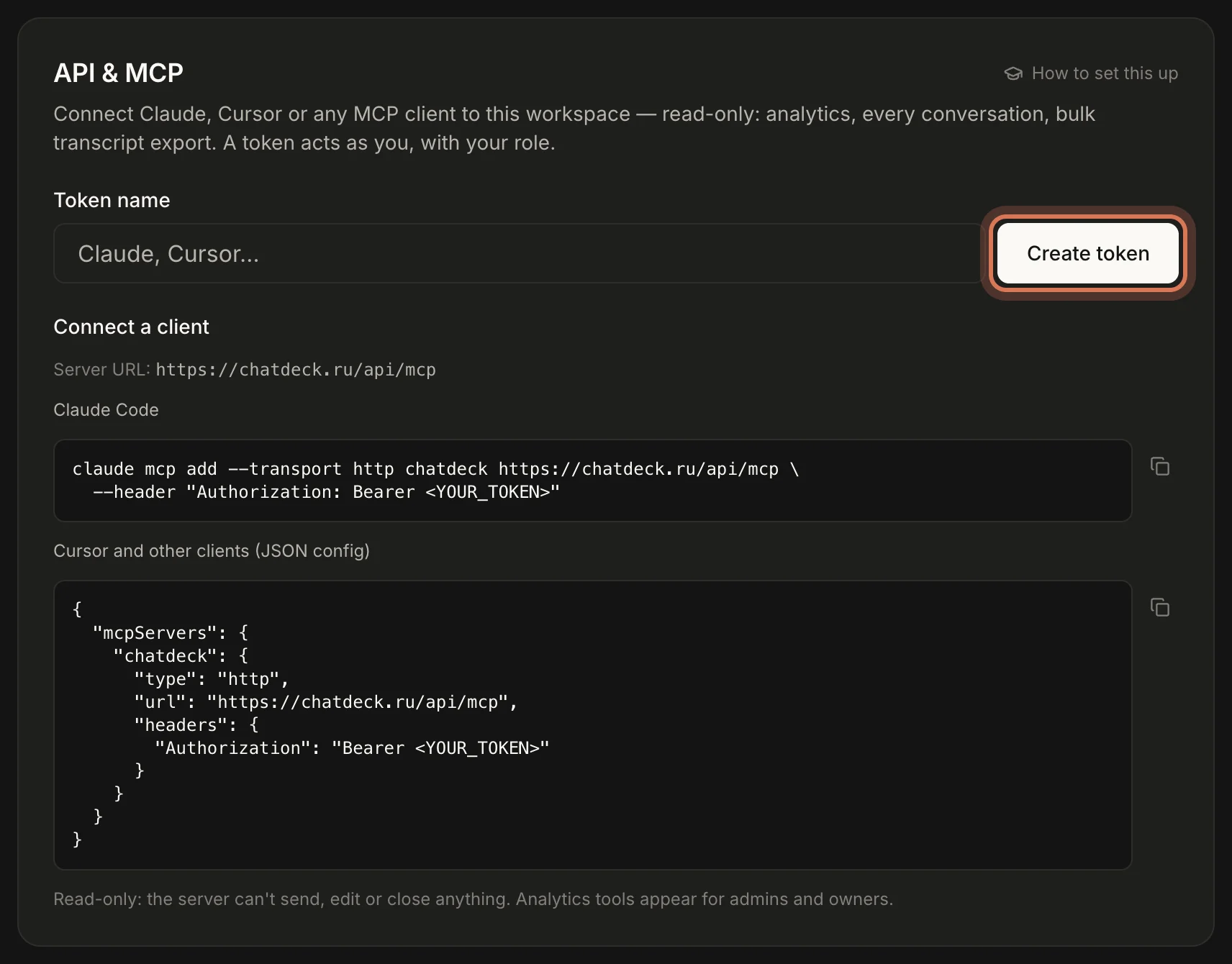
- Scroll down to the API & MCP section.
Step 2. Create a token
A token is a personal key the assistant uses to get into your workspace.
- In Token name, say what it's for — "Claude" or "Cursor" — so you know which one to revoke later.
- Click Create token.
- The token appears (it starts with
cdk_). Copy it right away — it won't be shown again. If you lose it, just create a new one.
A token acts as you, with your role. Don't publish it or paste it into shared chats. If you're removed from the team, the token stops working.
Step 3. Connect your client
Below, under Connect a client, the commands are ready to copy. Right after you create a token they fill it in for you in place of <YOUR_TOKEN>.
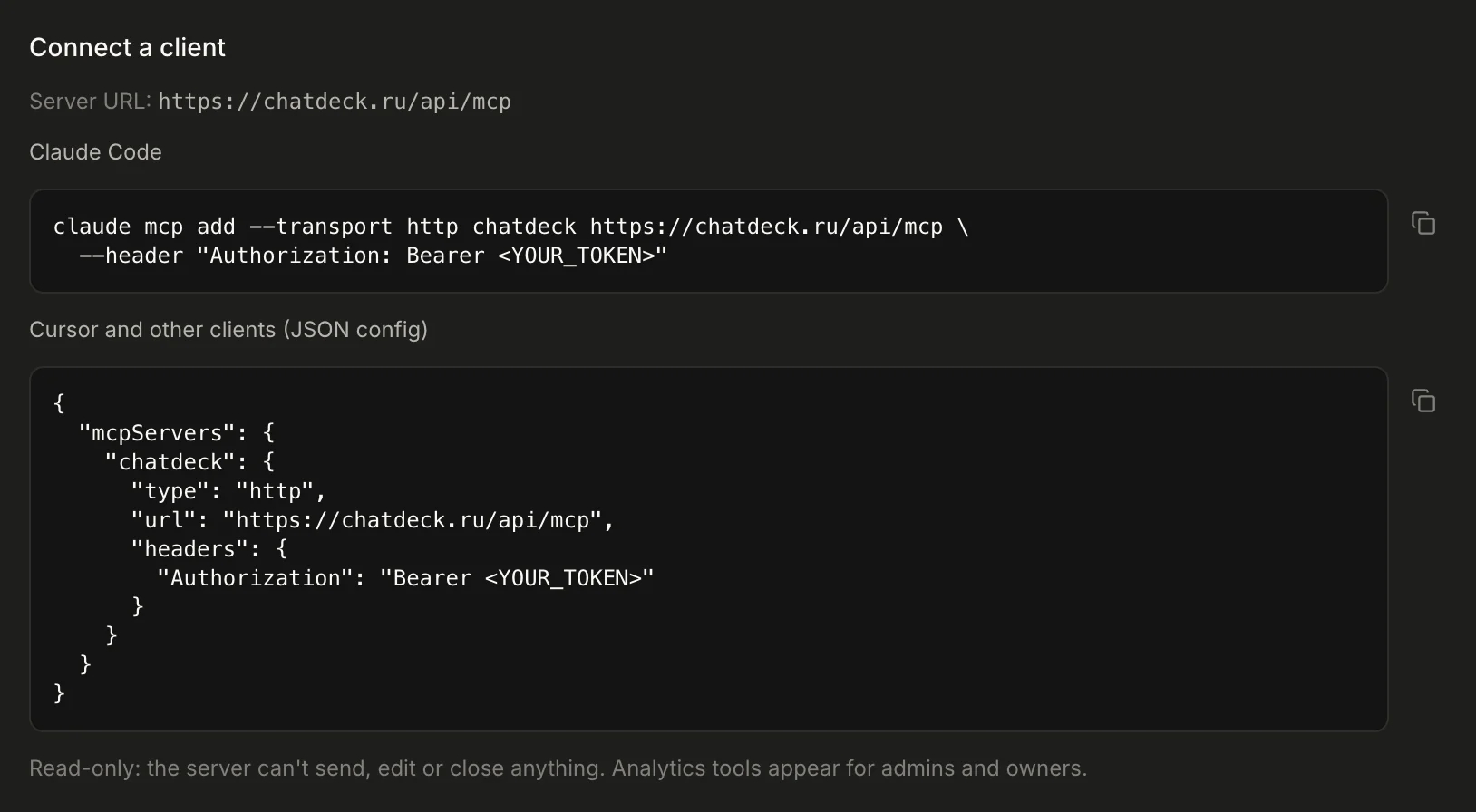
Claude Code. Copy the command and run it in your terminal:
claude mcp add --transport http chatdeck https://chatdeck.ru/api/mcp \
  --header "Authorization: Bearer cdk_…"
Cursor and other clients. Copy the JSON config from Claude Desktop, Cursor and other clients and paste it into your client's MCP server settings (in Cursor, the ~/.cursor/mcp.json file). Then restart the client.
Server URL for any client: https://chatdeck.ru/api/mcp.
Step 4. Ask away
The assistant gets these tools:
- get_workspace — an overview: name, team, assistant settings, conversation counts.
- list_conversations — conversations with filters: open/closed, agent, date range, search.
- get_conversation — one conversation's full transcript with ratings.
- export_conversations — every transcript, for bulk analysis.
- search_messages — search through message text.
- get_analytics and get_rating_trend — the same numbers as the Analytics page, plus how ratings change over time. Admins and owners only.
Things to ask:
- "What did visitors ask about most in the last 30 days? Group it by topic."
- "Find conversations rated 3 or lower and explain what went wrong."
- "When did the bot hand chats to a human? What should I add to its instruction so it can handle them itself?"
- "Compare agents' average response time this week and last week."
- "Find every message mentioning 'delivery' in October."
A good habit: once a month, ask the assistant to review the bot's conversations and suggest edits to the assistant instruction.
Step 5. Revoke tokens you don't need
The token list shows when each one was created and last used. To switch one off, click the bin icon (Revoke) and confirm. Any client using it loses access immediately.
FAQ
Can the assistant reply to a visitor or close a chat?
No. The server is read-only — there are no tools for sending, editing or closing anything.
What does an agent see if they create a token?
The same as in their Inbox: every conversation in the workspace. Analytics tools only appear for admins and owners.
How many tokens can I have?
Up to 20 per person. If you hit the limit, revoke old ones.
Still have questions? Write to support@gptunnel.ru — we’ll help you get set up.