Notifications and apps
Never miss a visitor: browser notifications, the macOS and Windows apps, and the iPhone app.
Visitors don't wait long: if nobody answers, they simply leave. To hear about new chats right away — even with the ChatDeck tab in the background — turn on browser notifications or install the app on your computer and phone.
Each team member sets up notifications for themselves, in their own profile.
Step 1. Open your profile
Click your avatar in the top-left corner of ChatDeck to open your Profile. Scroll down to Notifications.
Step 2. Turn on desktop notifications
- On the Desktop notifications row, click Enable.
- Your browser asks whether ChatDeck may show notifications — click Allow.
- Done: the row now says "Enabled on this device".
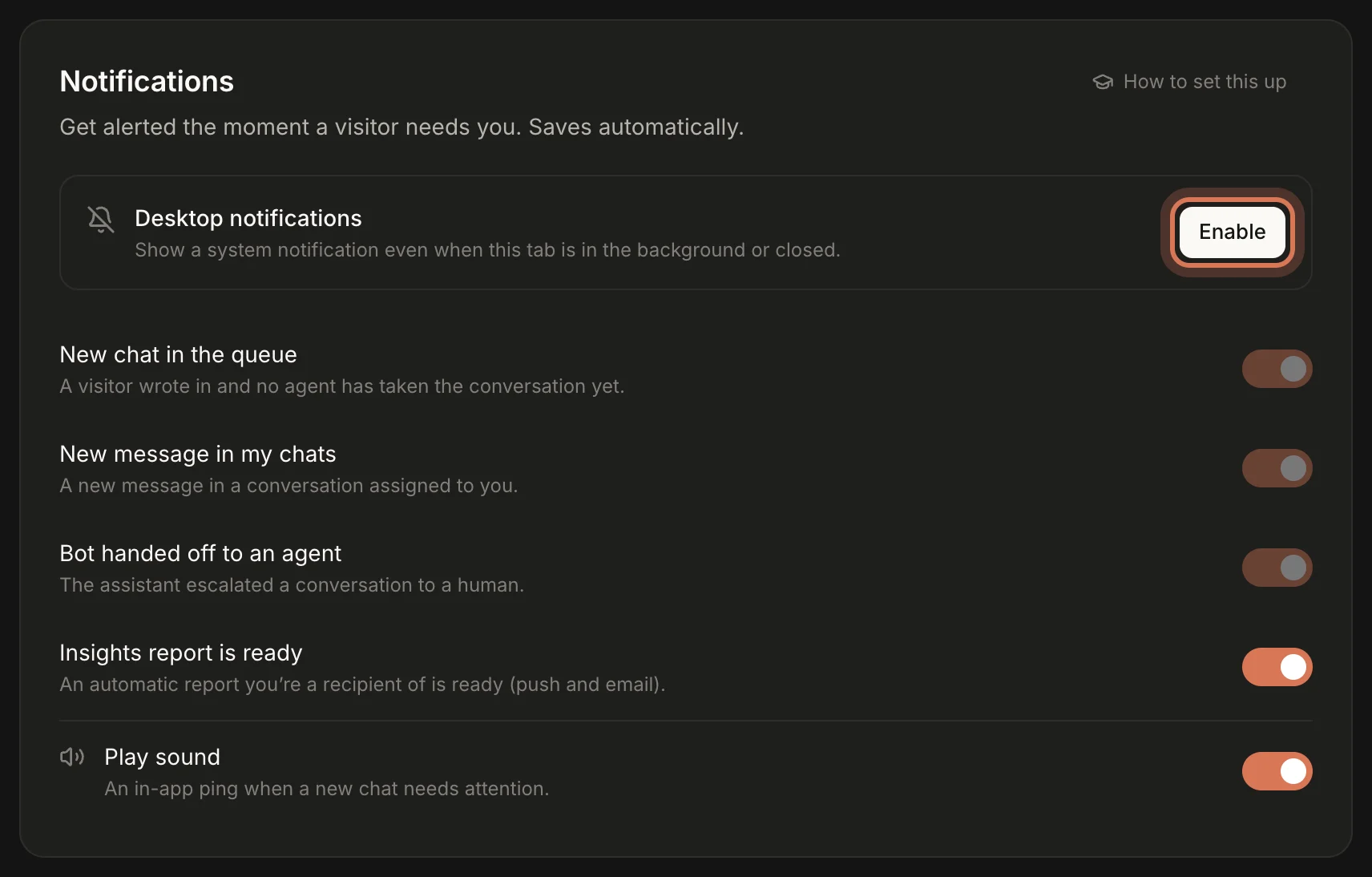
If you see a message saying notifications are blocked instead of the button, allow them by hand: click the padlock icon to the left of the address bar → "Notifications" → "Allow", then refresh the page.
Notifications are turned on per browser and device. If you work from two computers, click Enable on each.
Step 3. Choose what to be notified about
Once notifications are on, the switches become active:
- New chat in the queue — a visitor wrote in and nobody has taken the conversation yet.
- New message in my chats — a visitor replied in a chat you're handling.
- Bot handed off to an agent — the assistant couldn't help and is calling for a human.
- Play sound — a short ping in open ChatDeck when a new chat needs attention. Works even without desktop notifications.
Everything saves automatically. To check that alerts get through, click Send a test notification at the bottom of the block.
While the AI assistant is handling a chat, you won't get alerts about it — the team is called only when the bot hands the conversation to a human.
Step 4. Install the desktop app
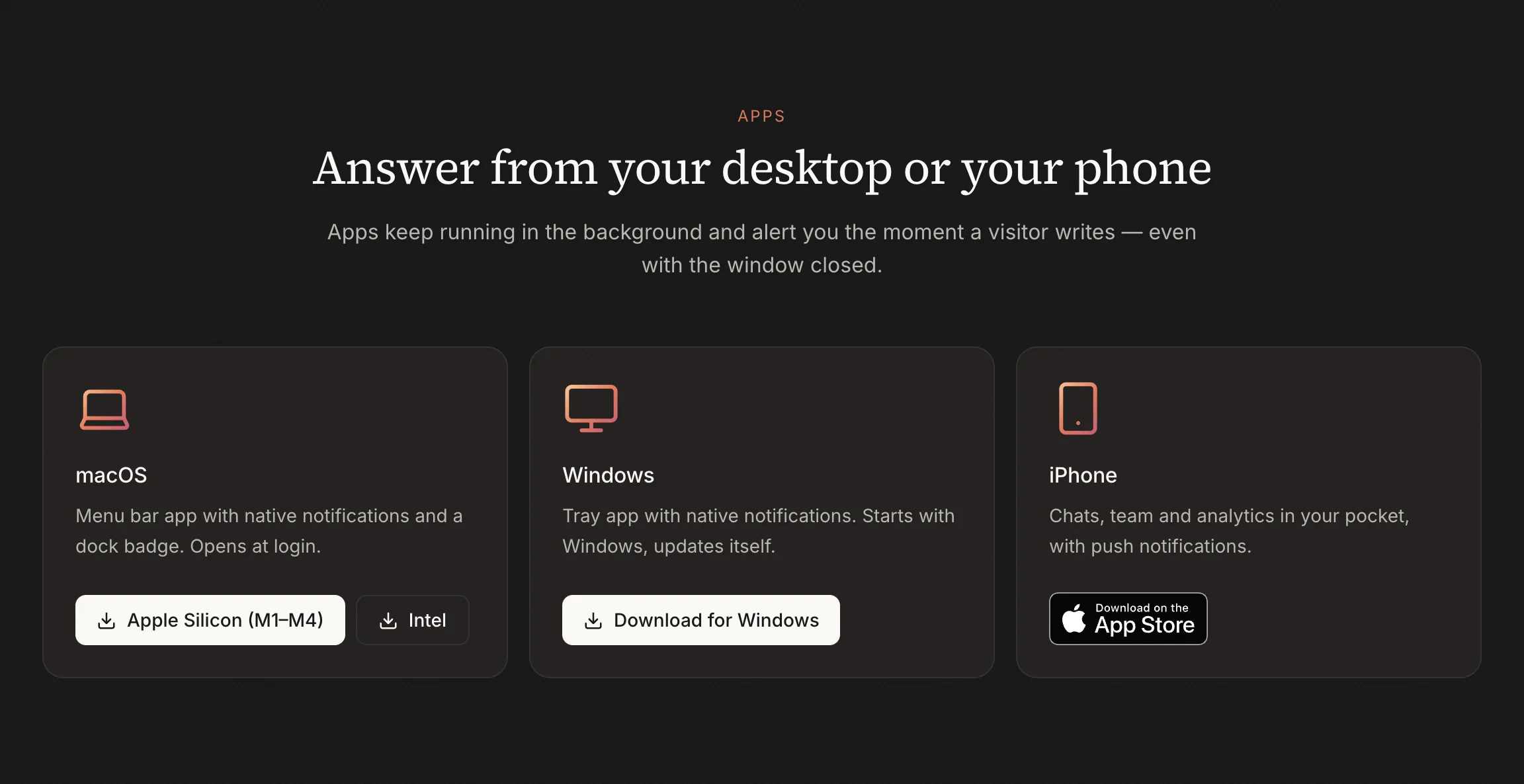
The ChatDeck app for macOS and Windows is handier than a browser tab:
- it lives in the menu bar (macOS) or the system tray (Windows) and keeps running with the window closed;
- it opens at login — you can turn that off in the icon's menu ("Open at login");
- it shows native notifications and a badge with the number of unanswered chats on the Dock or taskbar icon;
- it updates itself.
Download it from the Apps section of the home page: there are Mac builds for Apple Silicon (M1–M4) and Intel, and one "Download for Windows" button.
Install the app and sign in with your email and password. Notifications are built into the app, so there's no Enable button to click. You can switch the categories from Step 3 right in the app, in your profile — they're shared across all your devices.
Step 5. Install the iPhone app
The ChatDeck iPhone app is on the App Store. It has your chats, team, analytics and settings.
- Install the app and sign in.
- Open the Settings tab and turn on Notify on this device.
- You can choose what to be notified about on the same screen — they're the same categories as in the browser: change them in one place and they change everywhere.
FAQ
Notifications don't arrive. What should I check?
- Your profile says "Enabled on this device" and the categories you want are on.
- Your operating system allows notifications from the browser (Mac: System Settings → Notifications; Windows: Settings → Notifications).
- Do Not Disturb / Focus is off.
- If the test notification arrives, everything works — you'll get an alert as soon as there's a chat for the team.
Do I need to keep ChatDeck open?
For browser notifications, no: they arrive even when the tab is closed (the browser itself must be running). For the desktop app, just don't quit it — closing the window keeps it running in the tray.
Next: connect the AI assistant so it answers first.
Still have questions? Write to support@gptunnel.ru — we’ll help you get set up.